How to configure Firefox color management

Firefox is a fully color managed browser and since version 89 it applies color management to all untagged images and page elements by default.
How to enable color management in Firefox and fix oversaturated colors
Firefox 89 changes the default behavior for untagged images CSS colors. Now all untagged images are treated as sRGB by default, same for CSS colors and all page elements.
In practice, this means that colors in Firefox will no longer be oversaturated on wide gamut displays and image colors will match the page background or other HTML elements, following the W3C specification for web color.
It's not needed anymore to change any advanced config in order to properly enable color management. The default settings are fine and mimic the previous versions when gfx.color_management.mode was set to 1.
ICC v4 profiles are still not enabled by default. It's debatable how useful this setting is in practice. The vast majority of images are tagged with v2 profiles and generally speaking v4 profiles are less compatible and offer little practical advantages.
The monitor profile is read automatically from the operating system and shouldn't be manually specified on the gfx.color_management.display_profile field, unless you want to force Firefox to use a specific monitor profile.
Enable ICC v4 profiles on the Firefox advanced configuration
Type in about:config on your Firefox address bar.
gfx.color_management.enablev4
Set to true to enable ICC v4 profile support.
There's no need to specify the monitor ICC profile manually as it's read automatically from the operating system.
Restart Firefox.
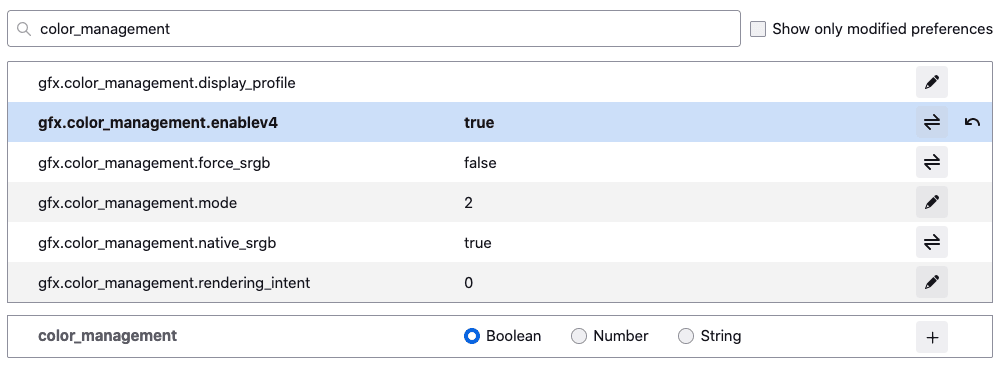
This is how it should look.
Test it
You can check how your browser's color management is behaving by accessing our browser color management test.