How to choose the best drawing tablet in 2022 and Wacom alternatives

What is a drawing tablet?
Drawing tablets, also known as pen tablets or graphic tablets, are input devices that can be used to substitute or complement a mouse. They’re very popular in the graphic arts field and are considered by some as an indispensable aid for any creative professional.
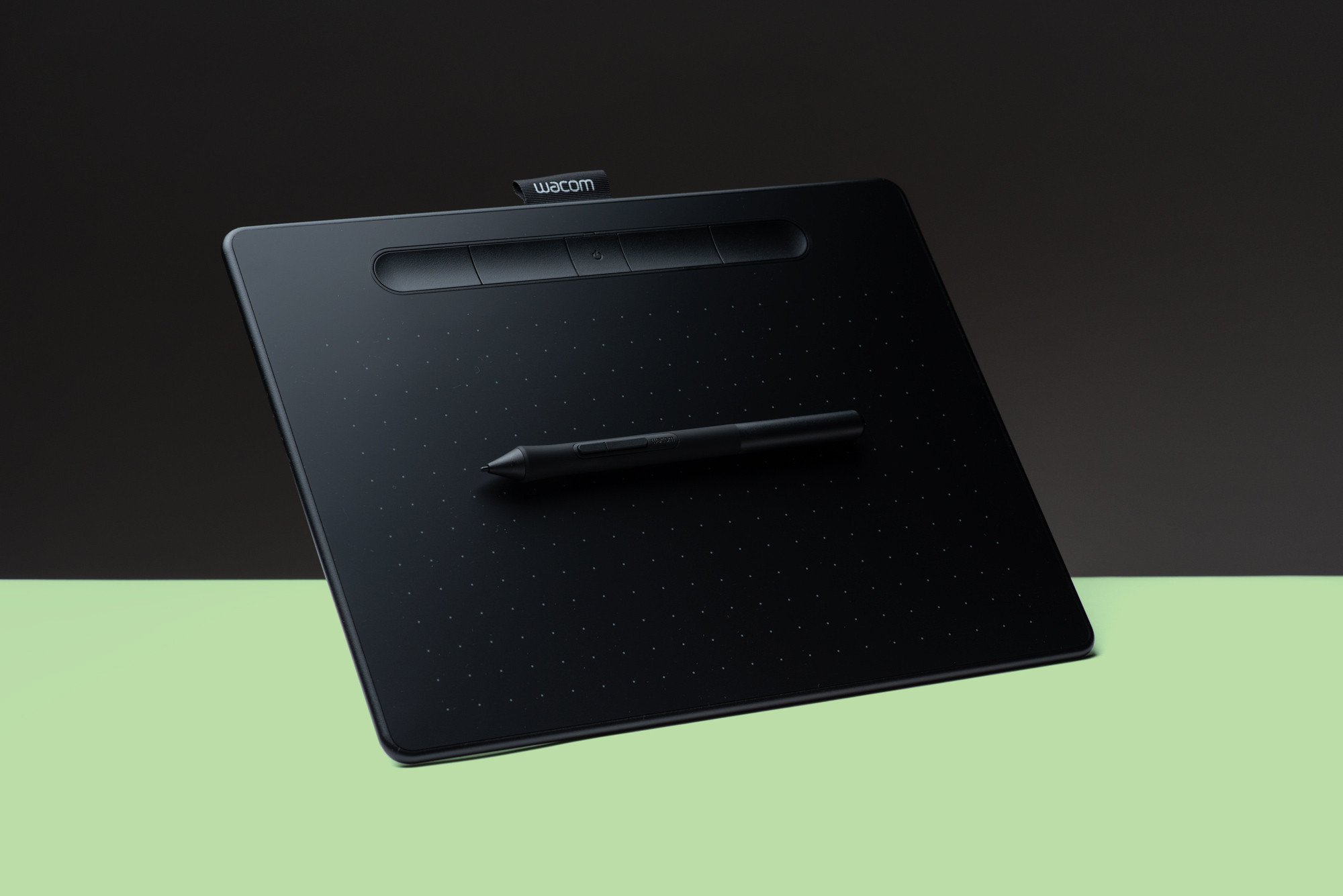
The Wacom Intuos M replaces the Intuos Pro Medium as my top pick for the best drawing tablet for most users. It’s a really capable product that can handle professional work environments as long as you don’t need tilt support, multi touch input and are not using 4K or multiple displays. For those cases, the Wacom Intuos Pro M is still the best option.
If you're on a budget, take a good look at the XP-PEN Deco Pro Medium and Small models, or even cheaper, the XP-PEN Deco 01 V2. In a nutshell, the Deco Pro models support tilt like the more expensive Wacom Intuos Pro lineup, while the Deco 01 V2 trades tilt for a larger work area and lower price, compared to the Deco Pro Small model.
What is a drawing tablet used for?
Drawing tablets can be used for most creative and content production needs such as illustration, photography, 3D modeling, animation, graphic design, etc. Most professional programs on those fields offer advanced pen support and can recognize and use pen pressure and even tilt, on more feature-rich models like the Wacom Intuos Pro lineup.
Touching the tip of the pen on the tablet surface is the equivalent of a click, while pressure and pen tilt can be used to vary stroke width, opacity, effect intensity, and other attributes. There are buttons on the pen that can be programmed for right click or other commands.
Most important of all, working with a drawing tablet is faster and more efficient than with a mouse. Your hand can travel from point to point on the screen in a single movement instead of repeated slides, as with a conventional mouse or trackpad. More importantly, it also allows for more natural input in activities such as drawing and photo retouching.
Why using a pen is better than a mouse
Holding a pen is also much more ergonomic than using a mouse, and most users with repetitive strain injury (RSI) or tendonitis suffer less pain when using a tablet. In my personal case, it completely cured a chronic pain I had in my right wrist. I’ve been using a Wacom pen tablet exclusively for the past 20 years and could not go back to a mouse.
Working with a mouse requires repetitive muscle movements while the rest of the hand keeps still, creating uneven muscle fatigue. A pen, on the other hand, allows you to work in a more relaxed position and eliminates the forearm twisting that strains muscles and tendons. At the end of the day, it feels much more natural and relaxed.
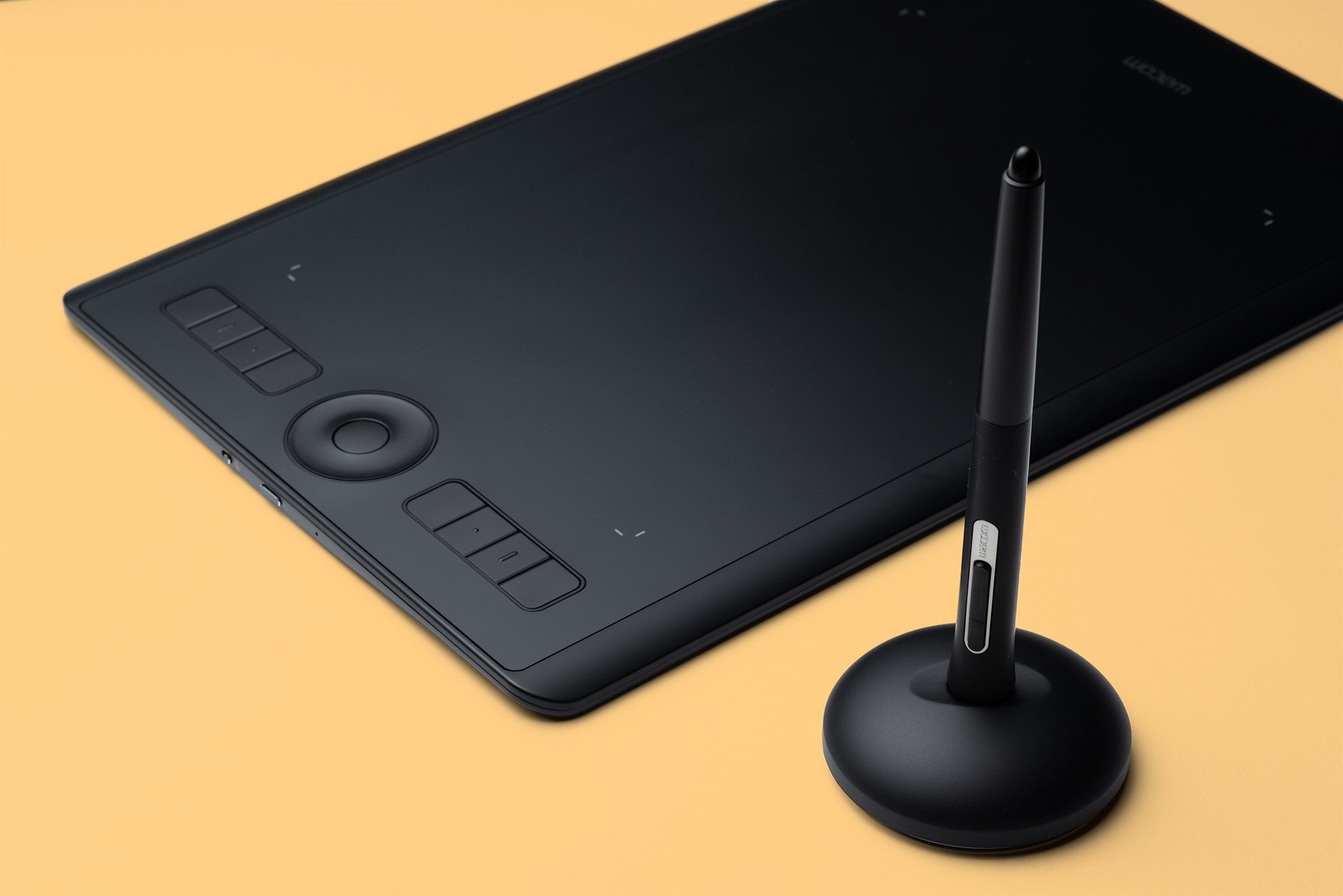
The Wacom Intuos Pro Medium (PTH-660, released in January 2017) drawing tablet is our top pick for all creative professional fields - such as design, illustration, video and photography. The medium size has plenty of resolution to handle single displays of any common size, including 4K or 5K LCDs above 30”. For a lower priced alternative, check out the regular Intuos Medium with Bluetooth (model CTL-6100WL).
Areas in which drawing tablets don't work so well
There are a few areas in which even the best drawing tablets are not the ideal input devices.
Most games don't work very well with pen input, as their interfaces were originally designed for mouse control. Think about controlling a first person shooter with a pen. It definitely makes little sense.
In the architectural and engineering fields, there's a split: some users love it, some hate it, mostly because the mouse scroll wheel is very handy for zooming on CAD programs and Wacom tablets have that feature on the tablet surface, requiring putting the pen aside to use it. Pressure sensitivity is also ignored in those programs, neglecting one of the tablet's main features. On the other hand, the more ergonomic position and programmable buttons could more than make up for it.
Wacom recently introduced an optional pen designed specifically for 3D programs. The Wacom Pro Pen 3D – compatible with current Intuos Pro, Cintiq Pro and MobileStudio Pro models – trades the pressure sensitive eraser in the back for an additional customizable button that can be mapped to any command in your application. It’s not a real breakthrough compared to the regular Pro Pen, but the extra button can come in handy when navigating 3 axis of movement in a 3D design program.
Using a pen alongside with a regular mouse
When consulting with other photographers and designers, I often find people that choose a mouse for general computer usage and switch to the pen tablet for creative programs, such as Adobe Photoshop, Lightroom or design apps. Keep in mind that Wacom drivers play well with mice and both devices do not interfere with each other.
I’ve personally switched fully to pen input almost 20 years ago, abandoned the mouse and never looked back. I use my Intuos Pro Medium for everything and keep a regular Intuos Medium for traveling with the laptop. Not coincidently, those are the most well rounded models on Wacom’s lineup and my top recommendations for most users.
Will touch devices kill pen tablets?
I doubt it. Without a major exercise in user interface design, my feeling is that we won't be able to achieve the necessary drawing precision with bare fingers to replace tablets. The two technologies are complementary and Wacom offers models that incorporate touch control. This gives us the best of both worlds: bare finger touch and gestures for quick window transitions, icon and menu selections, along with a pen for more precise actions where pinpoint accuracy and especially pressure sensitivity are indispensable.
Keep in mind that touch input can be an overrated feature for some use cases. Laptop users, for example, already have a good trackpad or touchscreen at their disposal, lessening the need for multi touch on the tablet itself. On the pen displays front, sometimes touch input gets in the way of your work and can interfere with the pen, even with the excellent palm rejection on newer Wacom models. The Cintiq Pro 24 with multi touch costs $500 more than its regular sibling and I’d personally choose the non-touch version for my work.
Which pen tablet should I get?
Wacom is still the best brand of drawing tablets, but keep an eye on the less expensive alternatives
Wacom still offers the best pen tablets on the market but the competition has been heating up on the past few years and now we can find good quality cheap drawing tablets from a variety of brands such as Huion, XP-PEN, Artisul, Gaomon, Monoprice, Ugee and Yiynova.
Unlike most of the competition, Wacom pens use a patented electromagnetic resonance (EMR) technology, so they don't need batteries or any wires to function, reducing maintenance and weight for a more natural pen feel. The most noticeable difference, though, is not the lack of a battery. To be fair, nowadays the batteries on alternative pen tablet brands last so long that this is not really an issue and both XP-PEN and Huion offer models with battery-free EMR pens.
What really sets Wacom pen tablets apart is better pen precision, with improved pressure transitions and less wavy diagonal lines than the competition. Wacom tablets tend to be supported for a longer time and have better drivers and third party integration than competing brands, making them a lasting investment.
I’ve always recommended Wacom tablets since the first revision of this guide, 7 years ago, but the panorama has been slowly changing in the past few years, specially on the pen display and tablet computer markets. Wacom’s Cintiq Pro and MobileStudio Pro lineups now find strong competition from the budget brands, Microsoft Surface tablets and even the iPad with the optional Apple Pencil.
As those devices come down in price, creative professionals may be tempted to migrate from a traditional pen tablet (Intuos) or pen display (Cintiq Pro) to a full blown tablet that integrates pen, display and computer in a single device. This makes a lot of sense for illustrators as all-in-one devices combine portability with the practicality of working directly on a canvas. Mobile computer power has been increasing steadily and tablet computers can now replace desktop computers for most tasks.
Wacom updated its tablet computer models in 2019: The MobileStudio Pro 13 (13.3 inch) and the MobileStudio Pro 16 (15.6 inch). The larger model offers an UHD (3840 x 2160) display with better color gamut, covering 94% of the AdobeRGB color space. Both come with Intel i7 processors, 16GB of RAM and 512GB of storage.
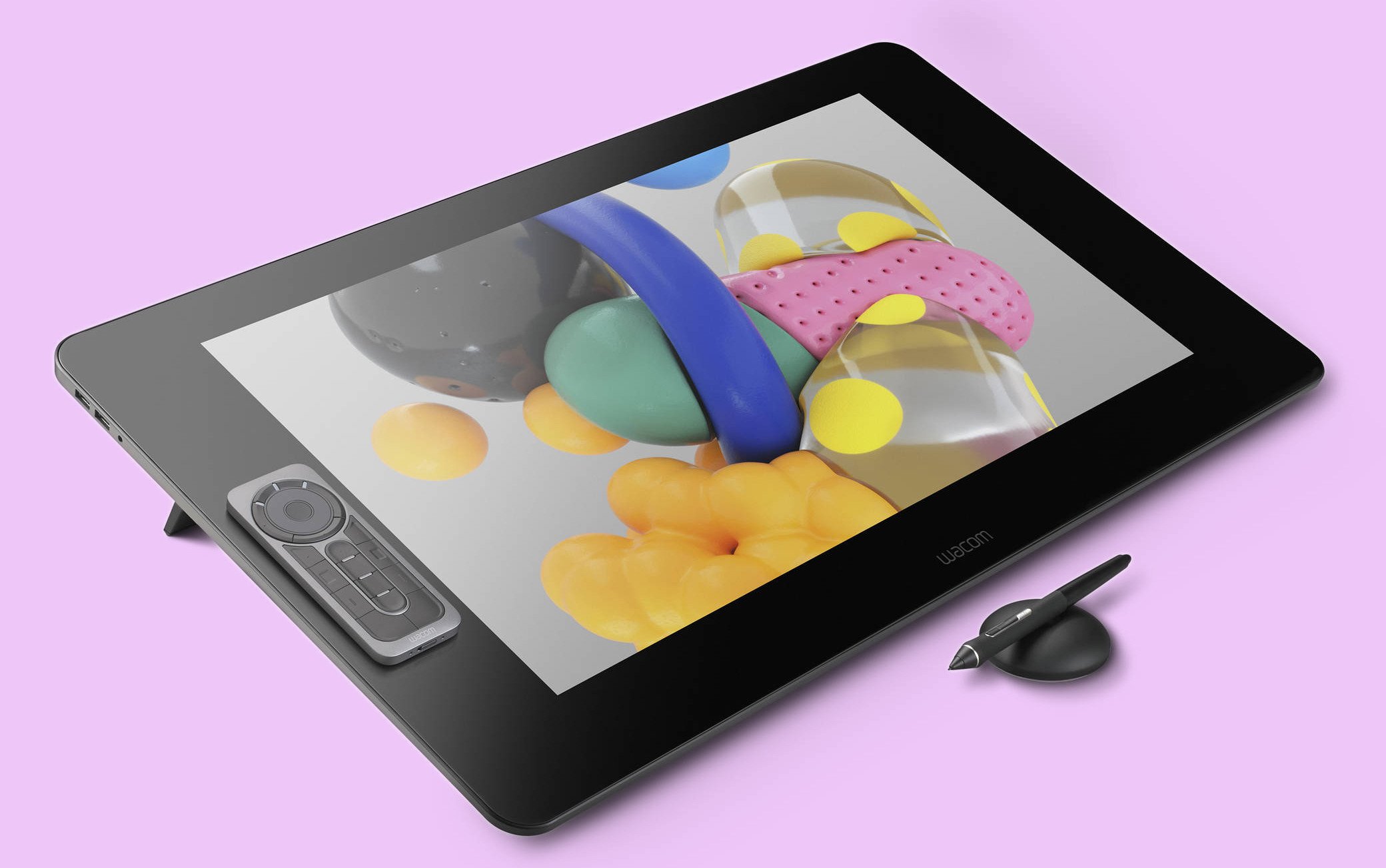
The Wacom Cintiq Pro 24 is an illustrator's dream come true: a large 24" digital canvas with very little parallax, 4K resolution, wide color gamut and the latest pen technology.
In addition to those, the Cintiq Pro 24 and 32 models can accept an optional computing module called Wacom Cintiq Pro Engine. This module turns the pen display into an upgradeable Windows 10 workstation. It’s not really portable as it lacks a battery, but is a far more self contained solution than lugging a desktop around. These modules are pricey but deliver pro grade hardware on a compact package, which can be interesting for users in professional environments.
It’s a tough market for Wacom as bigger companies, like Microsoft, can afford to iterate faster between hardware revisions. It took Microsoft 7 years to introduce eight new Surface Pro models and their latest version, the Surface Pro 8, is a very tempting alternative on the tablet / pen computer space, specially for users that need a full blown Windows desktop workflow. Just keep in mind that the pen for this latest model is sold separately – Microsoft Surface Slim Pen 2 – and upgrading to the 16GB RAM / 512GB SSD model could be a good investment.
In 2022, Wacom still produces the best dedicated drawing devices, while the Surface tablets are better all around computers and nothing can beat the iPad with Apple Pencil on low price, ease of use and convenience, while losing on integration and access to professional workflows.
Best cheap drawing tablet and Wacom alternatives
On the traditional pen tablets front, If you’re on tight budget and cannot stretch it to the $200 range for an Intuos M with Bluetooth, take a good look at the XP-PEN Deco Pro Small in the $100 range and the Deco 01 v2 at the $60 mark. Both models are highly rated, offer better specs and really good hardware build quality for less than a comparable Wacom product. If your budget allows, I still think the Intuos M is a better long-term investment.
Best Wacom drawing tablets and pen displays - Updated in March 2022
Here are our top picks in each of Wacom’s main product lines. Those are the models we feel are the most competitive and up to date, representing the best bang for the buck for any creative professional.
Drawing tablets - Intuos and Intuos Pro
- Intuos Pro Medium model PTH-660, released in 2017
- This is the most well rounded model of all Wacom pen tablets. It has the right blend of size, resolution and features to satisfy most creative users and display configurations. Hardware quality is excellent and based on the track record of my own previous Wacom Pro tablets, it should last for several years of daily use.
- Intuos Medium model CTL-6100WL, released in 2018
- The regular Intuos line offers great value for first-time pen tablet buyers or anyone on a budget. Well made, very light and thin, with enough resolution to work well on large displays up to 2560 pixels in width. It is also an excellent travel companion for users that already have a Pro model on their main setup and would like a more portable alternative for traveling.
Which models to avoid
Note that the small Intuos models are not among our recommended buys for creative work. The smaller surface area combined with the lower resolution makes it hard to achieve the necessary cursor precision for creative work, specially on higher resolution displays. Those models are more suitable for general computer usage, handwriting recognition and for educational uses.
Intuos vs. Intuos Pro
Event though the regular Intuos offers great bang for the buck, there are a few key differences that set the Pro model apart. If you’re choosing between both and have the budget to afford the Pro model, take some time to understand if any those features would be an important asset for your particular use case.
- Tilt support
- Required to correctly simulate the shapes of natural brushes, making it a must-have feature for illustrators working in programs that simulate natural media. Tilt gives much more natural results in those cases and there’s no software workaround for that.
- Multi-touch input
- If you’re a desktop computer user, chances are that you’re going to miss having touch support for OS gestures and navigation. The quality of touch input on an Intuos Pro isn’t up to the best trackpads, but is still very good and comes in handy for zooming, scrolling and switching between windows while working.
- Higher resolution
- Wacom didn’t stand still as computer displays increased in resolution. Current pen tablets offer really high resolution and even the regular Intuos can handle large resolutions with excellent cursor precision. The Intuos M model, for example, can address up to 2540 lines per inch, which translates into 21600 by 13500 points on its surface. Pro models have double the resolution at 5080 lpi and a slightly larger active area. Compared to a typical display resolution, that is plenty.
- In practice, I felt comfortable using the Intuos M tablet up to a single 30” display with 2560x1600 pixels. At that resolution, the Pro model felt a bit more precise, but the regular one was still plenty useable. That’s higher than the actual resolution of a 5K iMac running on its native Retina scaling, which is equivalent to a 2560x1440 display.
- Users with 4K displays running at their native resolution of 3840x2160 or multiple display users should invest on an Intuos Pro M model, as the resolution difference becomes very apparent in those cases and the regular Intuos M model doesn’t deliver enough accuracy for critical work.
- Build quality and accessories
- The Intuos Pro is better constructed and feels like a luxury product in hand. It’s built like a tank and should last for years of professional use. The Pro lineup also offers more accessories, like optional pens, nibs and surface sheets in difference textures.
Choosing the correct drawing tablet size
Tablet size and resolution vs. screen size
Tablet sizes should be relative to your screen size and resolution. The smaller the tablet surface, the less hand movement will be necessary to move the cursor on the screen. Having a tablet too small for your screen leads to a jumpy cursor and makes fine selections difficult. A tablet too big for your screen feels slow, requiring more hand movement, and may tire your arm muscles quicker.
Tablet resolution is also a factor. The regular Intuos model has half the resolution of the flagship Intuos Pro line and this difference may be very noticeable, depending on your screen size. Given the same tablet size, the higher the resolution, the bigger the screen that can be used comfortably with it.
Bigger tablets, such as the 16.8” x 11.2” (430 x 287 mm) models (Intuos Pro Large, for example), are difficult to use along with a keyboard and tend to be more adequate for single task work where typing is secondary, for example video editing or drawing. If you are an illustrator and likes to draw with very long strokes, a larger drawing area may be necessary. For most artists, the medium sized models are the sweet spot.
For dual display use, keep in mind that the overall screen proportion is much more horizontal than the tablet itself. Through the system preferences configuration panel, the tablet can be set up for different screen mappings, single screen mode or screen switching with a hotkey. The most natural way, in my opinion, is to keep the screen proportion exactly the same as the tablet surface. If you use dual displays, this means that some of the vertical area of the tablet would be inactive and that the horizontal resolution available will be mapped to a much bigger number of pixels—for example, 3840 x 1080 for dual 24" 1080P displays. This would require a larger drawing area than a single screen, and preferably a high end tablet such as the Intuos Pro Medium or Large models. An alternative that works fairly well is to use a smaller tablet and set up a hot key combination to switch the control between the two screens, but doing this create some confusion when dragging objects from one screen to the other.
My favorite keyboard for use along with a Wacom tablet is Logitech K810 (PC), or K811 (Mac), because it has a smaller footprint and fits nicely at either side of the tablet. A full size keyboard may be too large to be used on the side of a tablet larger than an Intuos Pro Medium, leaving the tablet too far from the central seating position. Some users prefer to place the keyboard in front of the tablet. This arrangement works best if you don’t need to use the keyboard much while working and is not my preferred working position.
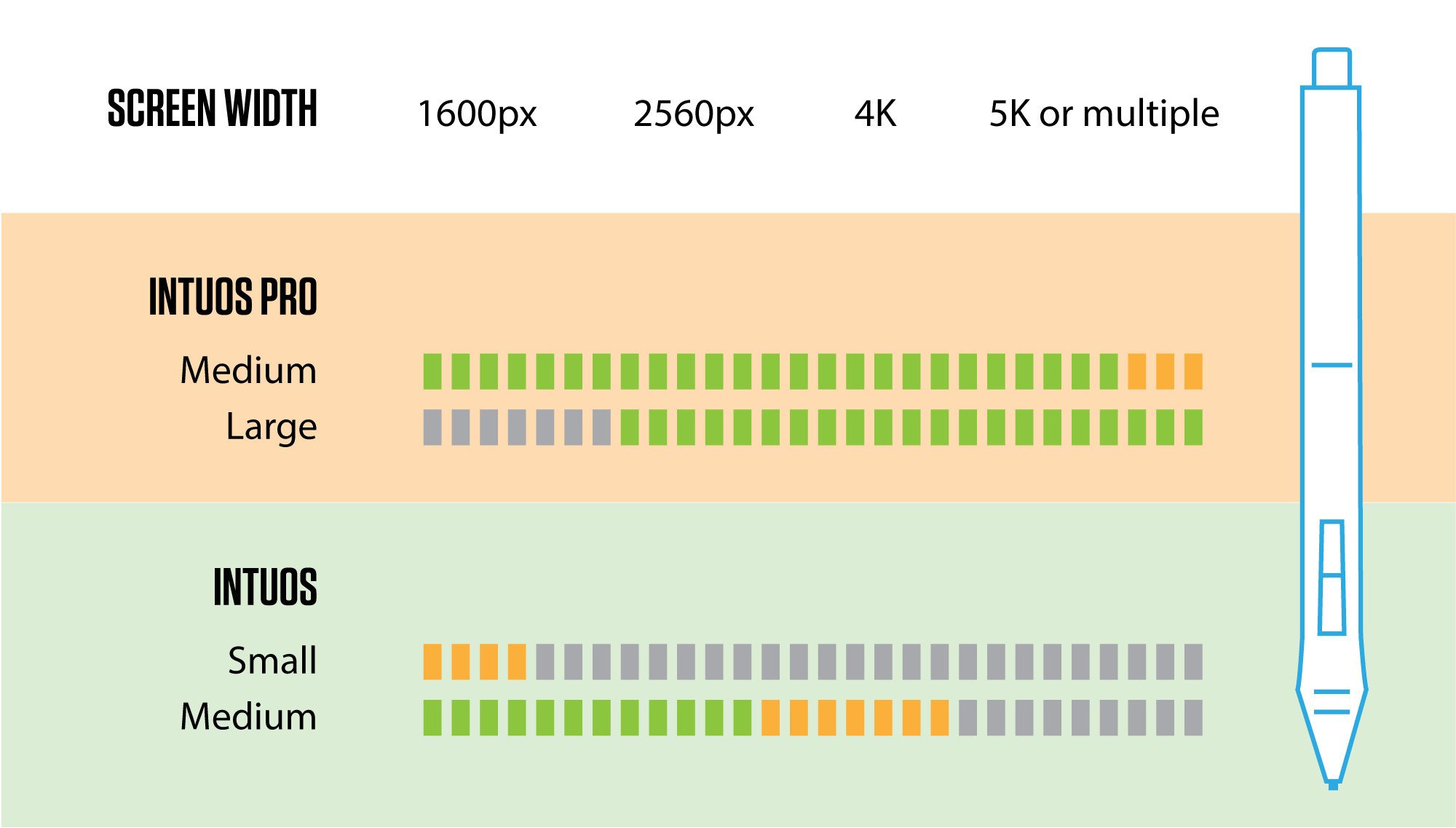
Pay attention to the tablet size you choose: Having a tablet too small for your screen feels imprecise and makes fine selections difficult. A tablet too big for your screen feels slow, requiring too much hand movement, and may tire your arm muscles quicker.
Retina Displays and resolution scaling
Always consider the actual effective resolution of your screen, and not the raw hardware resolution, to chose the most adequate pen tablet model and size. For example, even though an Apple MacBook Pro 13” display has 2560 x 1600 pixels at native resolution, the operating system default and recommended scaled resolutions vary from 1680 x 1050 to 1440 x 900 pixels. This is well within the realms of a regular Intuos Medium model.
First days with your new drawing tablet
Working with a tablet is a paradigm change and may require an adaptation period for hardcore mouse addicts.
All pen tablets work with absolute positioning, while mice are relative positioning devices. This means that you can slide your mouse several times to move the cursor across your screen, while on a tablet all you do is move your hand and position the pen tip on the corresponding point on the tablet surface. This changes your eye vs. hand coordination logic and can be a little daunting the first time.
I bought my first Wacom Graphire 4" x 5" model, circa 1998, after suffering from carpal tunnel syndrome for a good time. No matter what treatment I used, I always felt pain after using my mouse for extended periods, so adapting to a new input device was surely less painful than keeping the mouse.
My tablet arrived in the middle of a book design job and I delved straight into it, leaving the mouse disconnected. You can use a mouse along with the tablet, but my reasoning was that the more I forced myself to get used to the tablet, the faster I'd master it. After two days of work, I was already comfortable with it and never used a mouse again in the 20 years after that day.
A peek into the future
At 40, I’m older than the average twenty-something that populates most creative studios around the world. I come from an age where screens were monochromatic and there was no Snapchat or even the Internet. Oh, the horror!
While I love desktop computers and focus on tools that allow me to get stuff done with maximum efficiency, I have to concede that the world is moving towards mobile devices and playing with the amazing tech toys we have nowadays can be an amazing creative outlet.
People and companies (I’m looking at you, Apple) are abandoning desktops and this trend is no different on the pen tablet market. We’re moving from pen input devices and pen enabled displays to complete tablets that marry computer, display, touch and pen on the same device. This makes a lot of sense for the general public and specially illustrators, who now have freedom to produce work anywhere without being tied to a computer.
On the other hand, it makes absolutely no sense trying to use a tablet computer, even a powerful one, for movie editing, web design, 3D animation, print design or even professional photography. Those are areas that benefit greatly not only from pen input, but also from raw processing power and workflows that favor integration between different programs, fast storage devices and multiple professionals working simultaneously on a project. In those cases, desktop computers offer much better bang for the buck and workflow integration options.
In other words, I wouldn’t abandon my computer and Intuos Pro (or Cintiq Pro) for an iPad, even though I’d heartily recommend an iPad for illustrators, comic artists or students who want to dive into the creative field.
Keep in mind that none of the companies that occupy this big market are standing still.
I recognize Wacom as a company that moves fast, experiments a lot and thinks outside of the box, even though this sometimes leads to a confusing product lineup. This is a great trait coming from a large company. Their recently revamped tablet line, the MobileStudio Pro, is a very well reviewed device that bridges the gaps between mobile devices and traditional pen input.
Microsoft offers the best laptop replacement tablets on the market. The n-Trig technology used for pen input is not up to Wacom’s gold standard, but has been improving at a fast pace and the Surface Pro 8 is a great device, surely capable to replace a traditional computer and Cintiq combo for a lot of use cases. Microsoft made great improvements on the pen latency, initial activation force and pen wobble on this latest iteration.
Apple is another important player. The iPad Pro and Apple Pencil introduction was received with some skepticism from professional users – myself included – but has proved itself as a worthwhile alternative for digital illustration. The iPad excels in usability and is a much leaner and portable package than even a Microsoft Surface Pro tablet, not to mention the big price difference. The latest iPad + Apple Pencil combo can be had for less than half the price of a Surface Pro 8 and a third of the least expensive Wacom MobileStudio Pro.
iOS software ecosystem favors newcomers and outside thinking, bringing to the market programs like Procreate and Paper by Fifty Three, for drawing, or even Astropad, which turns and iPad into a Wacom Cintiq replacement. Traditional software companies are also investing in this market. Take a look at SketchBook by Autodesk and the offerings from Adobe that transform the iPads into companion devices for the desktop Creative Suite.
Comments
Great review. Thank you!
Want to get in intous for my 13yr old daughter/artist. She mainly uses Copic markers, pencil and some colored pencils on paper. Which program would be best for her first?
I could have written this EXACT question myself! 13 yr old daughter/ topic marker user and pencil...
Don't know which to buy! She wants the pro, but I'm not sure because she really hasn't used digital art before and we have no software beyond the basic draw programs her computer came with.
Any suggestions?
I got a wacom a few years ago for christmas (I'm 14 now) I have a wacom bamboo create, and it works perfectly fine, and it's around 100 dollars cheaper if I remember correctly.
(seeing as she hasn't done digital art before, any time of wacom bamboo would probably be the best choice)
AWESOME! thank you, I had pretty much decided on the Intuos Art. Thank you for helping me feel confident about this choice! I appreciate your feedback.
I'm currently 16 and really am looking for a cintiq since I'm more of a traditional artist and visual hand is very important so the cintiq is more of a need, just not sure which one. I was thinking either the companion 2 or the 22hd touch
I urge anyone considering a Wacom to read up the cintiq companions power issues. Wacom publicly swears they fixed the issue that affected the 1, however multiple users have reported similar issues with their companion 2.
I had the power issue and the replacement failed after 2 months. Buying my cintiq companion was an expensive mistake!!
As I said to Carla, I would recommend Paint Tool SAI or Manga Studio 5. SAI, however, does not work with Macd
What programs to use? I'd suggest starting with Krita, to be honest. It's free (so she has more money to spend on a better tablet), and it's pretty good.
Download page is here: https://krita.org/en/download/krita-desktop/
It has won professional accolades too: https://krita.org/en/item/krita-receives-artist-choice-award-from-imaginefx/
buy her the software before the hardware. Adobe creative cloud is more important of a start
Try Gimp first. It's free, easy to use and while it doesn't have the most advanced features, it's similar enough to Illustrator that it can be an invaluable learning tool before spending money.
There are many tutorials for Gimp on YouTube. I can't tell you how many great projects I completed with it.
Amy & Carla,
Getting them a Wacom tablet and some software is a great investment into their future. Even if they don't end up working in the creative field, it will be a lifetime joy and skill to have.
Obviously the Adobe Creative Suite would be good to have, but since you asked about copic markers, pencils, etc., check out Sketchbook Pro. It's my choice for that sketchy look of pencils, markers, and paint.
By the way, I find that Wacom tablets are keep their worth for a long time. On my second computer, I still use one that is over 10 years old (maybe even older). It doesn't have the advanced functionality as my more recent Intous but I can still draw, paint & retouch.
Autodesk Sketchbook was my first piece of drawing software - I tried it out when I was 14 and, at 17 and seriously considering a career in the creative field, have not switched. I've tried all the free software, and the Adobe Creative Cloud is out of my budget. I keep coming back to Sketchbook. The interface is sleek, it's clean, and I covered 90% of the learning curve with a single 6hr project. It was a lot of fun to learn how to use and to play with all the different brushes.
I currently use a 5yr-old (at least!) Wacom Intuos CTH-680, and it still works like new. It's a little scratched up, and I'm looking at an upgrade, but it's been loyal and I haven't had an issue with it... ever.
10/10 - would absolutely vouch for Autodesk Sketchbook as a "My First Drawing Software"
P.S. I know how horribly late this is, but it's the holiday season again and wanted to add my input.
FireAlpaca is a good drawing software, and it's free.
If I were you, I'd get her the pro and let her learn and practice a lot. Also, instead of using the basic graphic design tools on your computer, I'd recommend getting a free and very powerful program that I use myself called FireAlpaca. It is an odd name but an amazing program and she will learn very fast and enjoy it a lot.
I would suggest Manga Studio 5, or Paint tool SAI. SAI is much more popular, but does not work on macs
you should get her a draw small tablet bye intous
Paint tool sai. And fire alpaca can be a good start.
Hi Carla,
I myself started when I was thirteen the same way your daughter did. I recommend that you start out with Paint Tool Sai. It is a paid program, of great quality, easy to use.
Photoshop is definitely the next level (I started with it, wich took way more time and energy to learn and understand). Photoshop is also very complicated and has a lot of functions you don't need as an artist like your daughter and me.
Clip studio paint is also an option and is inbetween Photoshop and Paint Tool Sai. It's like Photoshop but more directed to visual artists.
I hope this helps!
Thanks, very helpful.
keep it up
Very helpful! Thank you!
Thank you very much :)
EXCELLENT REVIEW! Very comprehensive. Curious about what you think about the new Inkling?
Ivy, I've not had a chance to test the Inkling yet, but it looks to be an interesting product for illustrators. The only possible deal breaker is that it isn't very precise, with +/- 5mm accuracy near the page corners.
For general work, a pen tablet is a better bet. If you are comfortable with a mouse and work primarily as an illustrator, I'd give the Inkling a try.
Cheers,
Thank you for your information. It was very helpful, however I still have a couple of questions, since I am not very good a drawing.Can I also use a tablet for selective coloring of a photo, I mean, Is it possible to have the photo scan or copy to a tablet itself so i can fallow along the lines better...? If so which model would do this sort of task? Thanks again.
Andy,
You can trace your artwork by placing it over your tablet an drawing directly over it. The pen works just fine even without directly touching the tablet surface. Older models had a clear overlay that could be lifted, but current ones are fixed. You can always cover your artwork with a clear sheet of mylar or any similar plastic to protect it while tracing and make the pen slide easily.
For colorizing images, I don't think this is the best technique, tough. When you use the pen tablet, you develop eye / hand coordination just like with a mouse, mapping mentally each movement on the tablet surface to what you see on the screen. You can open your image in Photoshop or any similar application, desaturate it, choose a suitable color and brush size, shape and opacity and start painting with the cursor, controlling it with you hand movement. It is surely more intuitive in real world than I can describe it! You can also map the pen pressure and tilt (only Intuos4) to opacity, brush size and brush shape for more realistic results.
Both the Intuos4 and Bamboo models would work fine. Choose by your display resolution.
Thank you for your comment,
That is a brilliant tip....being able to trace your artwork by placing it over the tablet! Thanks :- ) I'm just about to take the plunge from illustrating on paper with a few amendments in photoshop.. to working purely digitally - feels quite daunting - I've not managed to actually try a cintiq only see online demos etc. but it certainly seems to be the way to go for a more natural spontaneous transition.
What is better? Bamboo Create or WACOM INTUOS 4 PTK440? Thanks for your great article!!
That's a tough choice, Alessandro. If you want to use it for illustration, I'd choose the Bamboo Create for the larger size. It's easier to draw with longer strokes. For general usage or photo retouching, both are similar, but I'm usually more comfortable with the medium size tablets, like the Bamboo Create or Intuos Medium.
Thank you for your comment,
hey fabio im gonna be getting a wacom tablet for drawing and animation and to record my screen and stuff like that so i dont have to use my moms ipad (apple) and i have been doing research on yet both the wacom create and intuos 4 and i dont know wich is better for all that?
I'm seaching for the best available tablet to use with GIS products (saga GIS, GRASS, and ESRI ArcGIS 10). However, the wacom site and google did not really help.
Suggestions about a site where a comparison between models (maybe even of different producers?) is possible / presented?
Just for the record: wacom has an annoncement of the DTU-2231, which seems to sell as PL-2200 by now. However, techspecs and compatibility are more hidden than presented. And wacoms website is pure consumer bullshitting. I need more "professional" information.
Aeon,
I've never used GIS applications personally, but I did some research to be able to reply to your comment. It seems that those apps have no support for pen pressure and tilt controls, so your main decision factor is resolution. The higher resolution the pen tablet is, the easier it will be to accurately select small data points on a map. For this reason alone, I'd go with the Intuos4 or Cintiq lines.
If you want the best possible and are comfortable working with a single display, buy a Cintiq. Nothing beats the feel of working directly on the screen. It's more natural and productive. The Cintiq 24HD is the newest and most sophisticated model of that line, sporting a 1920x1200px resolution.
The DTU and DTF interactive displays are more geared for industrial use. They offer less pressure levels and no customizable buttons. Given the small price difference - US$ 100 for the 21,5" models - I'd go with the Cintiq.
If a multiple display setup is a must, choose an Intuos4 Large model. Based on my tests, it has enough resolution to drive two 30" displays. The Intuos4 has a precision mode that slows down the cursor, making fine selections easier.
Wacom has a page dedicated to GIS professionals and also a YouTube video showing some examples of their products in use. It sure is marketing talk, but the video might help you to see how those pen displays work in action.
Keep us posted on what model have you bought and your experiences with it.
Cheers,
Thanks, Fabio! That's a really helpful reply! We'll start discussing the issue in our budget meeting tomorrow, and I'll try to remember to post the outcome.
By the way, deeplinks to the wacom site do not work for me. (May be a cookie issue, though.) I end up every time choosing my region on the /globalsites.aspx That's web usability for you.
Fabio,
sadly, I could not convince the majority of our lab members in the first hearing.
However, I found links I'd like to share here, since your blog was one of the first hits on my search.
Stackexchange was really helpful: http://gis.stackexchange.com/questions/10444/is-it-easy-to-digitize-in-arcgis-using-the-wacom-tablet
and via a post there, I found this blogpost:
http://letters-sal.blogspot.com/2011/05/digitizing-wacom-way.html
I'll try to find someone at another lab to lend us their tablet and try it out. Maybe, after a while, my labmates become accustomed. ;)
Aeon, thanks for posting. For me, the ergonomic improvement alone is worth the investment. Hope you manage to get a pen tablet soon. The larger Bamboo Create is a great product for the money.
Cheers,
Fabio - your review is very helpful. You give actual information which is what users are interested in when comparing models. Contrast your informative review with this extract from the Wacom website:
“Who uses Bamboo? Bamboo is for virtually everybody. For people who want to add a touch of personality to their digital life. People with friends and blogs and passion, people who like art and fashion. People who draw, document or design, People with a life – a social one, a creative one, a full one, a fun one or just an expressive one.”
… and so it goes on, with advertising videos that take up time showing happy smiling people using the products rather that concentrating of the actual features of the tablets.
I don’t want to “Step into a world of diverse digital expression”, I want to know how well a line on the tablet is reproduced on the screen, and if it is worth paying more for higher resolution in a tablet. As far as I know they do not have any videos showing this sort of thing, so I do not know if a small drawing on an Intuos4 is significantly better than a small drawing on a Bamboo. They should arrange for an illustrator to trace on the screen a small drawing on both machines and then show us jpg s to see if we think the difference is noticeable.
Yours is the only place I have found where you mention that you can trace a drawing by placing it on the tablet and you do not need the pen to touch the tablet. I was puzzled about this since reading that the Intuos3 have removable plastic sheets to place the drawing under, but this model has been discontinued. After you mentioned this I found overlay sheets on ebay for the Intuos4 which simulate different textures. I am not sure if they are transparent, but if they are not, you could buy the ones for the Intuos3 and tape them on.
You mention ‘virtual tracing’, which is different from real tracing, as the drawing is scanned first. I assume from what you say that this is a much better method. I would just like to add that by creating a new layer in the graphics program, the original drawing and the traced new layer are completely separate images, one on top of the other. Then you draw 'on the screen' by looking at the screen but with the pen on the tablet.
It is hard for me to decide between the new Bamboo Create £125 which includes Autodesk SketchBook Express, Adobe Photoshop Elements, Corel Painter Essentials, and Nik Color Filters, has but has lower resolution 2540 lpi,
And the:
Wacom Intuos4 PTK-640 Medium A5 Graphics Tablet £315 With 5080 lpi but no bundled free software
My question I would like to ask you is this: if I buy the lower resolution 2540 model and I find the lines drawn are not accurate enough, would it be possible to overcome this by mapping the 2540 model to only part of the screen? In other words, if you only use part of the screen so the cursor only moved around in, say a quarter of the screen, and you use the mouse to initially position the drawing in that place to work on it there, can you increase the effective resolution of the tablet?
StephenB, Thank you for your comment. I'm really happy to hear that this page has been useful for you and other users.
I'm not an illustrator myself, but I've worked closely with professional illustrators and also have traced lots of artwork and roughs using a Wacom pen tablet. As you said, there's a difference between drawing freehand directly on the tablet surface, tracing on a vector application - like Adobe Illustrator, and tracing over the original artwork by placing a clear overlay on the tablet surface.
If you want to draw freehand using the tablet or use a program to simulate natural media, like Corel Painter or even Photoshop, you'd be better served by the Intuos line. The higher resolution really shows in this kind of application and the pen tilt can be mapped to the brush dynamics, creating more natural results. The added levels of pressure are also most welcome.
On the other hand, if your final products are vector illustrations, the Bamboo Create would work just fine. On my design jobs, I usually scan a rough drawing, place it in a locked layer in Adobe Illustrator and then trace over it to produce a final drawing. Our Illustrator sometimes worked directly on the vector drawing, bypassing the pencil sketch altogether. In this application, you can rearrange the vector points and handles at any time and there are almost no freehand strokes involved, so tablet resolution matters less. Keep in mind, though, that a higher resolution pen tablet is necessary if you're working with multiple displays or a single big screen. I'm on a 30" Dell here and I sure feel the difference between a Bamboo medium and an Intuos of the same size.
It is possible to trace directly over the artwork, as you suggested. There's no need to buy a tablet specific overlay: any clear plastic would work just fine. Slightly textured plastics work better because they're less slippery. In my tests, the pen tracks just fine at up to 4mm from the tablet surface. In this case, resolution also matters and an Intuos would be preferable.
It's possible to map the tablet to only a part of the screen, effectively increasing the resolution / screen area ratio, leading to a slower and more precise pen feel. I don't' know, though, if this is practical, since you'd still need the mouse to work on the rest of the screen area. Switching between both devices all the time is tedious and I prefer to use the pen exclusively to do everything on my computer. The last time I've touched a mouse was more than 10 years ago and I don't miss it at all.
The Bamboo Create and Capture models have one important benefit that the Intuos line doesn't have, yet: touch input. Mac OS X Lion and future versions of Windows are optimized for trackpad use and I miss having this feature in my Intuos in OS X Lion. The scroll wheel is just so so. I'm not aware of any rumors, but I assume this feature will probably be added to the next Intuos5 line.
Keep us posted on your results with the new tablet and feel free to contact me if you need any other information.
Cheers,
Fabio - thank you for the detailed reply. I intend to draw fairly small cartoon type drawings. Since you say "the higher resolution really shows in this kind of application" with the Intuos4, I think I will buy this one. In the past I would draw with pencil, go over with pen, rub out the pencil, scan the drawing, and clean it up using the mouse. I think my productivity should increase with the tablet.
I would like to start with a huge THANKS for everything you've mentioned and replied to. After hours of researching to make the same decision as StevenB (between Create and Intuos4) most reviews have been useless, and you are the only one to suggest placing the drawing directly on the tablet to trace — and I was playing around with a sketch of my own on a Bamboo Pen & Touch (my Dad's old one) last night. Didn't even think of that. Brilliant.
I was still very undecided until I read the second last paragraph about not being able to use the intuos4 as a trackpad. I love trackpads, (way better on the cramped hand,) and was about to be give the game point to the Bamboo CREATE — until I remembered it came with a mouse.
I guess I'll stick to a mouse a bit longer, and just use my pen as much as possible. I like the sounds of the durability of the intuos4 and to correct StevenB, (sorry,) it DOES come with your CHOICE of two free software products.
STEVEN B! (in case you didn't read the above…)
ONE THING:
The Intuos 4 DOES come with the bundled software! On wacom.com, in Products > Intuos > intuos4 Medium > …beside the Introduction headline there is a link 'What's New' and UNDERNEATH that 'FREE SOFTWARE' where it states "As part of this program, you can chose two applications from a selection of three valuable creative applications offered by leading software manufacturers: Adobe®, Autodesk®, and Corel®. Many of these applications also offer valuable upgrade programs which you can access through the Wacom Privileges Program. Additionally, you can choose to download two different plug-ins that give you additional brush tools and photo effects in Adobe® Photoshop® or Photoshop® Elements." followed by a quick description of each.
Lots of Love guys,
you saved my 22nd bday mistake… Thisclose to NOT biting the bullet and cashing in a little extra. ;)
Have a good night.
And remember… Christmas… THE INKLING ahhhhhhhhh <3 http://wacom.com/en/Products/Inkling.aspx
Nikki, keep in mind that the Intuos doesn't come with the mouse. It's optional and costs $65. But you can always keep your old mouse. The tablet work alongside the mouse just fine.
The Bamboo Create is very similar to the Pen & Touch model. If you're satisfied with your dad's tablet, I'd suggest you to save some cash and buy the Create instead of the Intuos4 Medium.
Also, if you use a Mac with OS X Lion and have a LCD no bigger than 24", points for the Create: the resolution is sufficient and the multi-touch input is handy for Lion.
I think I've made your decision harder... Sorry. :)
Cheers,
Nikki - thanks for the information about the bundled software. And happy birthday. After reading what you have said and what Fabio has said I think I will go for the Intuos4 even though it is more expensive.
ps. ...any thoughts on the Inkling? I just watched the video again and the fact that I dreamed about a product like this my whole life makes it such a hard decision!
Hi, Nikki. First of all, thank you for the kind comments. ;)
I'm not so sure about the inkling. It's been marketed by Wacom as a sketching device and I think this is an appropriate approach, since it's not very precise, having +/- 5mm accuracy near the page corners.
It outputs vector artwork, which is a plus, but I'm not sure about the quality of it. The best way to draw vector shapes is to use the traditional bézier curves and I'm sure a freehand vector drawing would have an insane amount of points.
I'd get a traditional pen tablet instead, unless your work requires quick sketching and you're more familiar with drawing on paper.
Check out this two reviews with some real world usage examples.
DigitalArts
Robert Hranitzky
Hi!
i found this review VERY helpful. I use a an older large intuos at work where i am a textile designer. since i work in fabric, my end product is about 44x36 in so i work at a high resolution.
I have decided to finally get a wacom for my home as well so i can work on personal textile and art projects, but i cant decide between the medium and large sizes. the medium seems better for travel and will work well, but im so used to my large tablet at work im scared to downsize.
any suggestions to help make my decision?
Marie,
The newest Intuos tablets have higher resolution and I'm currently using a medium one with a single 30" display. I'm sure the resolution won't be a limitation, unless you're running multiple big displays.
What would be different for you is the pen feel and drawing stroke length. The medium model will appear to have a faster pen and you'd have to use shorter strokes, compared to your your large tablet at work. It is possible to get used to this difference, of course, but it'll sure feel a bit different, specially if you do much freehand drawing.
Cheers,
I've been researching tablets all day. yours is the best review. Since you also do a great job in response, here goes.
(2) questions; software and size;
-Having a sketch tool with autodesk continuity would save the translation from hand work to autocad. Will you please comment on the idea of "sketch to finish" architectural drawing using these tablets.
-Above in the chart the extra large rates as good for CAD. Please elaborate on this. I often need multiple sketches in one view; sometimes related in position as in a plan/section study, at about 12x18 the extra large is right for this. Also I sometimes need to turn the drawing, would this happen electronically? Could this be problematic with the bigger size? Id go see one but in Cincinnati there are none on display.
Thank you for your time and attention, Luke Robinson.
Luke,
I'd suggest you to try a demo tablet in order to evaluate if it fits your needs. I'm not proficient in CAD and my work background is in design and photography. I've seen architects working with Wacom tablets and they used the tablet more as an input device directly in Autocad than a sketching tool.
You can always sketch using the pen tablet, place the sketches in a locked layer on your editing program and create the finished drawing over them. Having a tablet would free you from scanning those sketches and it's also a more ergonomic device than a mouse.
Regarding the size, the larger sizes are useful if you work with only the tablet in front of you and rarely has to touch the keyboard. It is also useful if you need to trace large artwork or sketches directly on the tablet surface.
Based on your description, maybe the Cintiq line would suit you well, if you have the budget for it. This would allow you to work directly on the screen.Take a look at this video here and see how an user is using a Cintiq tablet with Solidworks.
Thank you for your comment,
This is an excellent article. I am in a similar situation to StephenB where I want a buy a tablet, but I only want one to suit my purposes and don't want or need to upgrade (funnily enough I too draw in pencil, ink, erase lines and then scan. I hope to ink directly on the PC to save mistakes on really good pencil work and not have to worry about erasing lines). I also wanted to choose between the Intuos4 Medium and the Bamboo Create and feel that maybe the extra pressure sensitivity (is 1024 really not enough?), tilt sensitivity, touch ring and expresskeys don't justify the huge leap in price between the two.
Which brings me to something that I have never found an answer for. Does tilt sensitivity really make a difference in terms of how the tablet senses the way you hold the pen? That was something that worried me as I would have to go for the Intuos4 if it is really much more accurate from pen nib to cursor compared to the Bamboo. I wondered if you had to hold it in such a way that seems unnatural just so the tablet senses its coordinates better. I haven't been able to try either tablet so I don't really know.
I'm a traditional artist trying hard to transition to digital, but I really don't have the money to try something and then upgrade, which is why I want something that is suitable for what I want it to do (cartoons, sketches, editing stop motion animation frames, etc. Currently have a 22" monitor) and stick with it to master it. I won't be using the touch features of the Bamboo (if that is the better choice), it's all about the accuracy for me more than anything else. I doubt even 2048 levels of pressure can handle even the lightest touch of a pencil on paper, so I believe the pressure is not really that important either.
I hope this isn't TOO long and I'd love to hear your suggestions!
Syreeta,
The tilt control is useful only when you're trying to mimic traditional media techniques and only in programs that allow you to map the tilt to the brush shape (or any other dynamics), like Adobe Photoshop and Corel Painter. You can draw just fine without it and the pen pressure alone is sufficient to create a natural looking drawing stroke. The cursor accuracy depends more on the tablet resolution, but, unless you have a huge display, the Bamboo would work just fine. Refer to the sizing table above for some pointers.
Regarding the pressure levels, 1024 is plenty. Think about it: a 8 bit B&W image has 256 levels of gray and looks like continuos tone for our eyes. Keep in mind that you can change the tablet pressure sensitivity on the control panel and also combine it with the pen color, opacity and other dynamics in your drawing programs. This gives you an infinite number of combinations to suit your drawing style.
My bet: go with the Bamboo Create. I has an adequate size for your display and is a great first time pen tablet buy. I've used an older model, much simpler, called Graphire, for many years and upgraded only when I've bought my 30" display.
Cheers,
Thanks a lot Fabio.
I had also emailed Wacom too to ask them and forgot to ask something else. Does the Bamboo Create's pen have a pressure sensitive eraser? I know the Bamboo Fun does (well in one of their videos it was mentioned), but there isn't a whole lot of info on specs like that.
I'm still a little worried about getting the Bamboo Create as I don't plan to upgrade after it (seriously too poor), so I'm wondering if the Intuos4 is really my only option. I would like to aim for a Dell U2410 monitor in the future which would add another 2" to my screen estate, plus I'm working on a type of special overlay with a small LCD screen that can clip onto the tablet (effectively turning it into a DIY Cintiq, but not voiding the warranty) could the Bamboo Create still handle that?
Sorry for the extra questions. By the way, the chart doesn't have the Bamboo Create on it yet. What is the maximum resolution you think it could support (monitor or otherwise)?
Syreeta, the Bamboo Create is comparable to the previous Fun medium model, so it'd work just fine with any 24" LCD with 1920 x 1080px resolution, like the Dell U2410. I think this is a safe choice for you, go for the Create.
I'm not sure about the eraser. The Fun model seems to have a pressure sensitive eraser, but I'm not sure about the Create. Please let us know what Wacom replies.
I'm intrigued by your DIY project. Would love to hear more about it. Keep us posted.
i have this page/article saved on my browser and check it everyday because of the questions that readers make and you answer about them tablets, well here I go now,
I´m a graphic designer from Mexico, I do a lot of illustration so I decided to buy a tablet, first tought in mind was the intuos4 but I kept searching, that´s how I ended up finding your site and article, for opinions.
the point of this is, I have saved enough money to buy an intuos4 medium (that´s the one I want) but lately in the comments I've seen you have recomended the Bamboo Create instead of the Intuos4, and that makes me doubt myself, what are the reasons you prefer the B.Create over the intous4m? is the intuos4 "too much"? can I get advantages from the differences of the intuos or is the Create enough?
it would help me so much if you'd answer!
& excuse my english if i messed up on any word!
Hi, Pablo.
The Create is much cheaper than the Intuos4 and offers more bang for the buck. It is sufficient for most users' needs and has an unique advantage: touch input, which comes handy for use with OS X Lion.
If your display area is no bigger than 24" and you're going to use it for graphic design, mostly vector illustration and general use, the Bamboo Create would suit your needs just fine. I'm also a graphic designer and I've used the Bamboo precursor, called Graphire, for many years. I have an Inutos4 Medium now.
The Intuos is more robust, has better resolution, more accessories and tilt support on the pen. You can't go wrong with it.
If your illustration style is more like natural media and you use programs like Photoshop and Painter to simulate paper and ink textures, the Intuos may be better due to the additional resolution and tilt support.
Thank you for your comment,
thank you so much for your answer!
At this moment I can buy the intuos 4 small, for 25 dollars less then the bamboo create! What would you do in such a case?
John, I'd go for the Bamboo Create. I prefer the medium sized tablets. The smaller ones require too little hand movement and that feels a little awkward to me. Buy the Create unless you have little desk space or require any of the unique features of the Intuos, like the pen tilt sensitivity or the customizable express button labels.
fabio,
these reviews are very helpful but i am still lost i know nothing baout these tablets i am buying one as a gift for my husband he does alot of illustration and sketches but nothing professional he wants a tablet but gave me no information and i dont want him to know i am getting it for him. i am torn b/t the bamboo create and the intuos 4
Hi, Amanda. If this is your husband's first tablet and he uses a single display no bigger than 24", buy the Bamboo Create. It's really good for the price. Thanks for the comment.
Hi, im a little bit confused. I want to do some digital art (mostly paintings ) but i dont really understand how it works the relation between "Monitor size - tablet " i have a 23" widescreen Benq monitor nad i was thinking to buy a wacom capture. It will work good for what i want to do ? or do I need a create o intuos4 model ?
Glen, the Bamboo Create would suit your needs just fine and is perfectly adequate for a 23" LCD. Go for it.
Regarding the tablet resolution vs. display area ratio, think of it as two grid matrices mapped to each other. The tablet size relates to the display area, so larger displays require larger drawing areas and better resolution (the ability to differentiate more points), or else the cursor would feel less precise and jumpy.
Your reply come just in time because probably this week i'll buy my first tablet. Thank you for your answer now im more secure, i'll go with the bamboo create and lets see how it goes :) thanks again.
Hello again Fabio.
I haven't forgotten you! I've returned to report that I currently have in my possession a Bamboo Comic (a Japanese Bamboo Create that comes with software for manga and stuff like that. It's also white and blue!). I am impressed with the construction of it (not flimsy AT ALL and the pen isn't very chunky as it looks), though I feel it is not as responsive and as accurate as I'd like. Since I can't return it (being from the land of the rising sun an' all), I was thinking of practising on it and at the same time saving up for a Intuos4 Small to compliment it.
I could use the Intuos4 Small for fine detail work that requires accuracy (like line art) and use the Bamboo Comic for work that requires more sweeping strokes and colouring larger areas. I still can't justify the cost of an Intuos4 Medium after I have spent he money on the Bamboo Comic, so I figure why not get the best of both worlds to fit my workspace and budget? Plus I don't think I have the space for the Medium as for some reason Wacom's tablets are getting bigger and bigger!
The Bamboo Comic fits just right on my desk (still bigger than I would like) and the Intuos4 Small will be similar in size. I tend to draw from the wrist (I generally work on mostly A5 size paper anyway), so I don't think the small active should bother me too much. Do you think this is a good idea? I'd love to hear your thoughts. Oh and as for the DIY Cintiq project, it flopped mostly because of insane jitter (a common issue that made the 12" Cintiq not so popular). I was planning to use an iPad LCD panel as the screen and while I got an image and everything, the signal from the tablet's pen was blocked in areas and jittered a lot!
Plus, I am unable to find FFC cables and connectors I need to extend a FFC cable that controls the LED backlight, so I'm completely stuck and can't bear to spend any more money trying. So I'm going to go the same route as everyone else and learn to use the tablet the way it was intended. Cintiqs are nice, but are completely out of MY reach! Hope to hear from you soon. :)
Hi Dear,
Iam about to buy a Bamboo Pen here in Europe, and Im confused of the resolution thing...
Im using a 22" samsung TFT, with a 1650x wide resolution.
Now I have to choose between TWO Bamboo Pens, the older ctl-460 or the newer ctl-470. The older have 1270 lpi, and the new have double, 2540 lpi.
The problem is I have extremely low cash atm, and I have to touch my 2nd level savings (which I put off for extreme situations only) to buy the newer one. Ofc If I could, I'd buy the newer...
The question is: as a starting member of the tablet users (I used to draw and scan my arts), should I take the 2540 lpi, or I wont be experiencing any downsides if I stick with the 1270 lpi, older Bamboo Pen???
How should I count it? I mean 1270 line per inch. The working area is 5.8 × 3.6 inches...so the width can handle 5.8x1270 lines? Thats far greather than 1650, so from this view, it would be enough?
Im just guessing here, please help me :).
The review is marvelous, thanks a bunch!
Looking forward for your reply, have a nice day!
Daisy
Hi, Daisy.
Both models would have sufficient, but not great, resolution for your current display, but the newer model would feel more precise. If you plan to do more freehand work, like simulating natural media, the higher resolution tablet would have a clear advantage. The newer model has also more levels of pressure sensitivity and touch input, which comes in handy for general computer usage and web surfing.
Why don't you try to buy an used or refurbished model? I don't know about the prices in Europe, but Amazon USA currently has the CTL460 refurbished for US$ 59.95, the CTL470 for $78.49 and, better yet, the larger CTH661 Fun Pen & Touch model for $114.95, which is a great price. You can also try eBay.
Cheers,
Fabio
Oh, one more thing!
If the 1270 lpi would not be enough to fit fine on my 22" 1650x1050 screen, how could I (with which software, or settings) make the tablet work only a shrinked surface, not the whole screen, so the resolution would fit?
I have to mention that your review is just awesome, It helped a lot, and the comments were very useful too!
Thanks for your support Fabio!
Have a great day!
Daisy
The bundled tablet driver allows you to map the tablet surface to just a portion of the screen, effectively increasing the resolution vs. area ratio. This setting is under the mapping tab of the Wacom control panel.
Another way to make better use of the tablet resolution is to zoom in your artwork and work on smaller pieces at a time. Also, if you're working with vector drawings (Adobe Illustrator or Corel Draw, for example), you can zoom in and fine tune the bézier curves at any time, so the freehand precision matters less.
I'm think you won't have a problem even with the lower resolution model, although the new model and also the Fun Pen & Touch medium size would have better performance for the price.
Dear Fabio,
Thank you VERY much for your reply, I am really reassured by your answer, I am heading for the lower resolution one, cos of the lack of coins.
I will try it out and devinitely post a comment here, for the future generations =). But I dont think many people will face this problem tho.
Again: Thanks a bunch, and have a great day Fabio!!!
Daisy
Hello,
I just want to ask for an advice in buying my first tablet. I am an animation student and we use Intuos3 in our school, and I really love to make digital art/illustrations. I have a Dell 24" lcd and I am torn between Wacom Bamboo Connect or Create, so is it better to get the bigger one or the small one will do just fine? Thank you so much. And sorry for my wrong grammar since English is not my first language. :)
Hi, Beth. The larger model, Bamboo Create, is a much better choice for illustration use, specially on a 24" LCD. I'd avoid the smaller models for any user other than general computer usage. Buy the Create. I'm sure you'll like it a lot.
Cheers,
Like many others I'm torn between the Bamboo Create and Intuos 4 (medium). The major difference between the two thats got me flipflopping is the "tilt" feature. The Create looks much more appealing to me since it has "touch" capabilities and better price. I don't mind the 1024 PL or not having quick keys. I would be using the device for graphic design & illustration on photoshop and illustrator. Does tilt allow you to make strokes that would not be possible without the feature or does it just make them feel more natural?
Chris, the tilt sensitivity helps to make brush strokes more natural when you're trying to simulate natural media in bitmap programs, like Photoshop and Corel Painter. It's not a mandatory feature, since you can map all brush dynamics, including stroke shape, to the pen pressure, achieving very realistic results. I'm sure you won't be missing much by buying the Create.
Hi Fabio!
I am wondering if the $100 difference between the Capture and Create is worth the bigger space, eraser button, and more programmable buttons.
I need the mouse/track pad capabilities as it's easier in Aperture with it, so Intuos is out of the equation for me.
I am a professional photographer who uses the liquify tool, dodging and burning (ie: free-hand coloring), frequent zooming in and out, and resizing of my paint brush often. I also use cloning and healing which needs an "option-click" that demands I go back to my keyboard, and my apple magic track pad can't do that. (Or can it???)
I need enough programmable buttons to allow me to "option-click" to "define the area" for cloning and healing, a button for resizing my paint brushes, and a button to automatically open my liquify tool. The zooming can be handled by the trackpad-like qualities I assume.
Now, I read somewhere that the pen for the Create has not only the eraser, but a programmable button on it as well. The Capture's pen does not have the eraser, but LOOKS like it might have a programmable button. I would be pleased with a programmable button as I could just click it and have it function as my eraser when needed. I REALLY want an eraser to be easy to access... but not $100 want it.
I use my 15" MacBook Pro, and a 24" display to edit. I need to be able to sit on the couch a distance from my computer and hold the tablet comfortably in my lap while editing (for my back and wrist problems). Would the bigger size of the Create help make it more steady on my lap?
Thank you for writing this article. It has really helped me to understand these tablets far more than any other article I have found thus far. I will be directing fellow Photographers and Graphic Artists to this site in the future!!
Thanks,
Becky
Though I did just read this "All told, the lack of an eraser is a big downside on both the Bamboo Capture and the $20 less expensive Bamboo Connect. It essentially removes the ability to work as a drawing tablet for many people, and you don't get a second programmable button on the pen that you can swap for the eraser function either. " here... http://www.pcmag.com/article2/0,2817,2397406,00.asp
REALLY hope that's not true.
Oops, but then I read THIS... "To our surprise we saw, during our tests, that the Bamboo Capture’s pen didn’t come with an eraser; getting it replaced isn’t possible. But don’t panic: either one of the 2 buttons on the pen or 4 keys on the tablet works as a way to switch to eraser tool."
Read more: http://www.blitzreview.com/gadgets/wacom-bamboo-capture.html#ixzz1hcoucGH6
Hi, Becky.
The Create is the only Bamboo model that has an eraser on the back of the pen. In my opinion, the larger size alone is worth the price difference. The Connect and Capture models are too small for use with a 24" screen and inadequate if you want to extend your laptop's desktop to both the internal 15" screen and the external LCD. For you usage I highly recommend getting the Bamboo Create CTH670 model.
Cheers,
Fabio
Thank you VERY much!
Hello,
Needless to say, you're review of Intuos4 vs Create is the most objective, in depth and up to date out there. Thank you for taking the effort to put this together.
I'd be grateful if you could elaborate the difference with respect to the bundled software and its bearing on the price. There just isn't enough information about what version of Photoshop is included in each of teh products. Wacom seems to have taken a less than helpful, ethical even approach of just putting the name of the software e.g. Adobe Photoshop Elements and no version number. Both on the product boxes that I checked at Best Buy and on their website.
PE 8 to 9 or 10 is itself an $80 dollar upgrade. Not to mention they've identified security risks with 8 and stopped supporting it. So its a significant factor when considering the purchase, especially for someone looking to get all the tools and apps in one go and get cracking out of the box.
After much research and no luck I finally went and bought a Bamboo Create (CHT670 - as you stress :)) yesterday. Immediately after billing I opened the package to see the version of software and voila, it has Adobe PE9 (can't expect 10 as its Adobe exclusive as yet). Tonnes of stuff to do with it. Tried things out till late early AM. It is good and feels "sufficient".
And then the devil of doubt stepped in. Just to find better pen usage practices when I started researching all products, Intuos4 Small suddenly seems like a better choice. It can manage free hand art and Vector aided design equally well as the reviews suggest, owing to the higher pressure levels and tilt recognition. Intuos4 Small costs the same as Create. The active area is lesser but it would suit my wrist oriented style I theorized. So since this morning I've been frantically trying to find out what the software bundle deal is. The Wacom website says 9. Went to the store again and was about to pick up the Intous4 when I just double checked with the cashier and it turns out it had 6.0! And here's a cautionary note for Intous4 Small buyers. There are two prices out there - 199 and 229. I'm not sure when the switch happened. But the 199 model seems to have PE 6, which can leave you with heartburn when compared to PE 9. So if there's anybody out there who has recently bought the I4 Small model please let us know what's the deal you got. May you live in interesting lines. Thanks.
Hi
Everyone that I read about is into drawing and illustrating. I want to begin by using a tablet for writing and having it convert to word. I hate typing and do alot of work that requires using paper sources and have to always look back and forth to type. Feel like I will write faster than I type. Also do alot of powerpoints.
But I would like the options that would allow for the drawing etc. if I learn more and can advance into that.
Thanks
Hi, Diane.
I've never used my tablet for handwriting recognition, but this is one of the uses mentioned on the Wacom site and I know lots of people use the pen tablets primarily for this task.
Since the pen won't be your main pointing device, you don't need a very large or high resolution tablet. I''d suggest you to buy a Bamboo Capture model, which is the cheapest one that has touch input in addition to the pen. It's an inexpensive model, costing around $95 at Amazon.
Keep us posted on your experiences and feel free to share them here on the site. I'm sure other users have the same question.
Cheers,
Hi! Thank you for very comprehensive overview! Still I`ve got some questions. I am a graphic design student and I am looking for a tablet for digital painting as well as photoediting etc. I am little bit confused, which one to buy. First, is it bad idea to buy a used one? I mean of course it depends how it has been stored, but maybe its not so big difference between them...?
Secondly, I can`t afford to buy Intuos4, but I was wondering between Intuos3 (probably used) and something from Bamboo. Both of them has 1024 pressure levels and similar price. What would you recommend?
Moreover, I read form recent comments that you were recommending Bamboo Create, but in some reason, in the Wacom Europe web-page there are just Bamboo Pen & Touch, Bamboo Fun and Bamboo Pen. Do you now if any of them is equivalent with Bamboo Create? Or which one of them is worth to buy?
Thank you so much in advance!
Hello! The Create is the newer model that substitutes the Fun Pen & Touch. You may find a killer deal on the discontinued model, so look around.
Those Wacom tablets do not wear fast and last for many years, so you can find an used one in good shape. The only parts that show wear are the pen nib, which is designed to be user replaceable (look for new nibs at the Wacom website) and the rubber around the pen, that gets nasty after some years. You can always buy a new pen and it's not that expensive, but this may offset the difference between an used and a brand new model.
I have one good argument for buying the Bamboo Create, though. It has multi touch support and this is very handy for scrolling web pages and using gestures in Mac OS X Lion and the upcoming Windows 8. I'm sure the next Intuos5 line will have this feature, too. For this reason alone, I'd buy a Bamboo Create or the older Fun Pen & Touch large model - CTH661.
Cheers,
Word of warning to any who are thinking of buying the Inkling. It was a teriible product and i could not get it to work properly. i spent a month calibrating it and finally had to send it back. Don't waster your time!
Hi, thanks for this review. I'm a teacher exploring the possibility of using the Bamboo tablet as an alternative to the chalkboard and have found (using a borrowed one CTL 460K and SmoothDraw3) that even at relatively slow writing speeds it produces poor results when I have to lift the pen to cross an A or a T. When watching screencasts of Sal Khan or others who are proficient on the tablet, this just doesn't seem to be an issue. They are writing quickly and clearly getting good results even though they are lifting the pen and putting it down quickly. Can you tell me why this might be happening? I'm working on a good DELL with System 7, so I don't think it's a processing issue on the computer hardware side of things. Thanks!
Randy,
This might be a shot in the dark, but have you tried the latest drivers downloaded directly from the Wacom website?
Another suggestion is to make sure the tablet is connected directly to the computer USB port, without any hub or USB extension, since this might impact the USB transfer rate.
Hi. Thanks for taking the time to reply back to everyone! I found your comments useful...but I have some questions as well. I'm pretty much a beginner to tablets but at my previous company that I worked with we were given tablets and I picked it up pretty fast with them. I believe the ones we had were the Bamboo Pen & Touch (with the red pen holder on the side). It really was a small tablet, when I was drawing in Illustrator I noticed I kept going off the edges of the tablet...kind of like how I'd draw on paper. I'm not sure what size monitors we had, they weren't huge... probably 22" or around that. I was able to adapt to it, however I hated how I would have to pick up my pen when I wanted to continue drawing a smooth stroke. And I noticed I kept wanting to erase with the back of my pen! LOL!
For quick info I'm a graphic designer but I also do digital illustrations and would like to experiment more with drawing/painting digitally on the computer. I used to do it the traditional way...draw, then scan images and color in Photoshop. The laptop I have at home though is a Macbook Pro 15"... I've never hooked up a tablet to it. Would be it difficult to use with it?
I'm not sure what size I'd need or if a small Bamboo would be sufficient. I'm pretty sure I'd like a bigger size though, but I'm on a budget. Are there any old models like the Create?! I was also wondering if pens are interchangeable or not...or does it have match for that specific model? I'd just love that pen with an eraser!!! Although I suppose I could get by without one. It takes a long time to erase freehand strokes in Illustrator though...
Also can you explain the above chart, maybe this is a stupid question...but what do the two different bar colors stand for?
And thanks for the suggestions... do you know anything about this older model? http://www.epinions.com/Wacom_Bamboo_Pen_Tablet_MTE450?sb=1
Nm...you don't have to answer the older Create model question. I see that you answered it previously. :)
Alison,
The tablet size is dependent on the monitor size and also on the personal preferences of each user, as you have experienced. Some people draw with broader strokes and adapt much better to the larger tablets.
The smaller tablets have less working area. When this area is mapped to a large display, each point on the tablet surface corresponds to a big area on the display. If the actual resolution is not enough, the cursor feels too fast, jumpy and less precise. The orange bars on the tablet size vs. screen size graph mean that while that screen size is not perfectly matched, it is useable for that given tablet model.
A Wacom Bamboo Create would work fine with your laptop. Just dowload the latest drivers from wacom.com and plug the tablet in the USB port. It's really that easy and there's little fo configure. If you'd like to draw in bitmap program, simulating natural media, like Photoshop or Painter, then you'd have various configurations in the programs themselves to map the pen dynamics (pressure, tilt, etc) to the various brush variables, like size, opacity, scattering, etc.
By the way, the Create has an eraser on the pen. Handy, for sure!
If you want a bigger model, your only option is the Intuos line. Wacom has just released a new model, called Intuos5. Maybe you can get the outgoing model - the Intuos4 - for a better price. A large Intuos4 would be great for you. Hope you manage to find one for a good price!
Thank you for your comment,
Fabio
Thanks for the reply!
I think I'm looking at a Bamboo one right now (maybe an older model) since I'm on a budget but I really want a tablet. Intuos are so out of my price range right now...even the older models except maybe Intuos2. Would an Intuos2 work on my macbook? Also since I'll be working primarily on a 15" screen (unless I go buy a bigger monitor) would a big tablet really matter (besides personal preference?)... your chart makes it not seem like it does. I think a medium sized tablet might be okay for me but I wouldn't go small. Would you consider 6 x 4 to be a small size? Or a 5 x 3?
Thanks for your help!
Alison, Amazon has the older Bamboo Pen & Touch model refurbished for $130. I think this is a great price for a very competent medium sized tablet. The size is plenty for your 15" MacBook Pro and this is the same tablet you used at your previous job. The Intuos2 is too old and I'd avoid it.
Fabio
Okay. Thanks very much for your help and opinion! :)
The CTH661 (13" overall product) is actually a lot bigger than the one I used at work (9"), so I'll most likely go with this one if it's more bang for the buck. :) Thanks!
is there any sketch tablet with display in the active area?
Mary, the Wacom Cintiq line incorporates the pressure sensitive tablet directly the the display, allowing you to sketch on the screen surface.
And Mary it costs you thousands of dollars.,.,so don't depend upon the gadgets,.,.,always independent on ur skills........!
Dude, my PC resolution is 1280*1024,,,,,,,& i didn't even touch a graphic tablet yet + my drawing skill is newbie......but i love these tablets,.,.,.,which is the best recommendation u can give me......?
Plz reply......!
Get a Bamboo Capture for US$ 90 and be happy. :) It'd be perfect for you.
Exactly the information I was looking for. Thank you!
Thanks for your detail information!
I consider to buy a wacom table for teaching (such Khan's style) but I wonder, small size is comfortable for writing or not?
should I invest in one A5 (medium) size for teaching activities?
many thanks,
Hello, Thanh.
I think a small model would be suited for this use. You'll probably be writing only small words and notes, so the larger surface won't make much of a difference. The smaller ones are also more portable and easy to carry around.
I'd choose the Bamboo Capture model, which is the least expensive that has multi touch support.
Thank you for your comment
Hi!
Thanks for this review! Is very helpful but i still have a quesion. Last night i spent hours Doing something in illustrator (using a mouse) and after a while my hand was hurting me so bad! So i have decided to buy a tablet. I read your review And i really liked the intous5. However i am on a budget (about 200-250usd). I found too small the small intous5. But i really dont know whats the best for me..i would like a medium size...
Do u think That there is an older intous model better that the bamboo Create?
Daniela,
In this case I'd recommend you to buy the Bamboo Create. It's a very capable pen tablet and I'm sure it would suit you well. This model has a surface area about the same size as medium Intuos.
Alternatively, you could look for an used Intuos4 Medium model, but I think the price is too close ($270 range) to the new Intuos5 Medium to make it worth it and used tablets always show some signs of wear. For example, the pen nibs wear out, the tablet surface gets scratched and the pen rubber grip gets dirty and more sticky over the time. Replacing those items is possible, but would drive the price closer to a new one.
what is the difference to a digital artist between the bamboo pen/docking station and the bamboo create... besides the price?
Donna, the Bamboo Create, model CTH670, is the only model in the Bamboo line that has a medium sized working area - 8.5" x 5.4" or 21.6 cm x 13,7 cm. This means it can be used with higher resolution displays than a small model, like the other Bamboos: Connect, Splash and Capture. It is also much easier to draw or retouch images on a larger area. This is also the only model in the lineup that has an eraser in the pen. In my opinion, the price difference is well worth it.
I've been using my Wacom Graphire 2 for years and love it but it's not going to last forever and I'm weighing my options. The comparison you made between the Intuos and the Bamboo Capture are exactly what I needed. Thank you!
Vivian, you won't believe the difference when you get a newer tablet. I've moved from a Graphire 2 to an Intuos 4, having used a Bamboo Create sporadically during this time. My Graphire clearly didn't cut anymore for the Apple Cinema 20" LCD I had at that time. It is great to have more precision and also some of the niceties of the newer models.
The Bamboo Create is the natural heir to the Graphire. You can buy it with confidence and I'm sure you'll love it.
Thank you for your comment,
Fabio
I've read the majority of the comments and just when I think someone has asked the question I want answers to, I don't quite get the answers.
I'm working with a 17" laptop and using it for digital painting, photoediting. I was looking at the Capture, but you continuously suggest the Create. Besides the lack of eraser and the size difference would I be wasting my time on the Capture?
Mainly I'm asking if I would outgrow the Capture too quickly (as I'm just a beginner)
Hi, mab.
The Bamboo Capture and Create are very similar, except for the size and lack of eraser on the Capture pen. This may be a shortcoming if you're heavily on digital painting.
If you have the budget, in my opinion, the extra size alone makes the Bamboo Create worth the difference, specially for higher resolution displays like yours. Given that both tablets have the same resolution (2540 lines per inch), the larger active surface on the Create model gives it 220% more points mapped than the Capture.
On the real world, this means you can have much better cursor precision with the larger active area. This might not be noticed on smaller displays, but anything above 1440 x 900px clearly shows the difference, in my experience.
In any case, I'd rather have a smaller tablet than to work only with a mouse. It is this much better, really. If you're on a really tight budget, buy the Bamboo Create to get the hang of using a tablet and sell it on eBay later, if you feel the need for a larger working surface. It costs about US$ 90 at Amazon.com.
But keep in mind that the Bamboo Create is currently at US$ 138 for a factory refurbished model, with warranty, also at Amazon. This is a super deal and I think much better value than the smaller model.
Hope this helps you!
Cheers,
Fabio
Hi,
I just bought a Bamboo Create from Amazon and did not see this post before that, i has not arrived yet. At this point I have a 32 inch TV connected to my PC 1360x768 screen resolution, its a samsung widescreen connected through HDMI. I wanted to use sketchbook pro 6, corel painter 12 and photoshop mostly for architecture work persentations and other drawing. I can see that I might have problems due to the fact that I'm using a Bamboo create. Will I be needing a new monitor (smaller) what are the odds? I did not buy an Intuos because I found it very expensive for the type of usage I will give to it.
Thanks in advance,
Oscar, you'll be fine. The main factor that dictates the tablet size is resolution, not screen size. A Bamboo Create can handle a 1360x768 px resolution screen just fine. I'm sure you'll love your new tablet.
Thank you for your comment,
Fabio
Great! Thank you Fabio. I'm still waiting for the tablet that I ordered on Amazon through Electrobrands and Fedex just lost the package... They said they will send another unit to me.
THanks again,
Hey Man,
Great review, this is really really helpful information :)
I had a scroll back through the previous comments but couldn't quite find the question that I have.
I am going to buy the INTUOS 5 but I am still unsure about which size to get, I would be using it with a 13" Macbook Pro (Early 2011) and so from your info graphic above, am I right in assuming that the small size would be the most appropriate? Or would it be the medium?
Thanks again pal,
Cheers,
Jeff
Hello Jeff.
The medium sized Intuos5 is the most versatile model, even though the small one has plenty of resolution to work well with your screen size. You may want to add a second LCD in the future and the extra area of the medium model may come in handy.
Let me add two more variables to your decision: if you'd like to use it to draw, the small model may be too tight for your brush stroke. On the other hand, since you're using a laptop, it is much easier to carry around than the medium one. By the way, Wacom makes a nice carrying case for each model.
Cheers,
Fabio
Wow I enjoyed your review very much, I have to disagree with this recommendation for some people. If you're an artist, and are used to moving or drawing with your arm, than the medium size or even the large may be perfect for you. However, as a professional photographer, I do 95% of my editing moving only my wrist. Most of my work is detail work.
I used to own a bamboo pen, and I found the size to be more than adequate. Previous to that, I did all my editing using the trackpad on my MacBook Pro. I just started using an Intuos Pro, and I absolutely love it.
Two prominent photo shop experts, Aaron Nace, and Matt Kloskowski, both use small tablets. In fact, Aaron actually maps only a portion of his small tablet to do for the shop editing.
Hey Fabio, thanks for all the in depth comments you have provided here, very informative.
Just a quick question on the Bamboo Pen & Touch; I purchased the medium version of this drawing tablet and I used it oh so briefly with my 20" old iMac before it died.
I am now a little torn as to which model to purchase, as the 21" pretty much locks you into the spec once it leaves the factory, and while I can see it lasting OK, the 27" looks like a more flexible option for similar money. Could that tablet size work OK with a new 27" iMac, or is it highly recommended to stick with the 21.5"? I note the 27" is just outside your yellow bars on the recommendation graphic and I wanted to get your thoughts.
The 2 resolutions are: 1920x1080 and 2560x1440.
Oh what a great review!
All my questions are solved.
Thanks.
Thank you for your kind words, Aaron.
I need help please!
Which is better? Wacom Bamboo Splash or Wacom Bamboo Crafts? Which has a bigger working space?
I use Adobe Illustrator, Photoshop & InDesign CS6 & i'll mainly need it for Digital Artwork used in graphic advertising & print. I'm a beginner.
Miriam, both tablets have the same hardware and specs. The only difference is the software bundle. They're capable models, but I'd recommend you to spend a little more, if possible, and get a Bamboo Create. It has a larger working area, making it a more versatile model, specially if you use a display above 23 inches.
Im torn on either getting the wacom bamboo capture or create? I work off of my laptop 11.6" is that too small for me to get a tablet?
Dre, the Bamboo Capture is sufficient for your laptop screen, but you might want to use it with an external display in the future. In that case, the Create is a much more versatile model.
Thanks for that excellent review. I was very confused by all the models that Wacom has.
Hi Fabio,
After reading your analysis and everybody's comments I made up my mind to purchase a Bamboo Create but then I found it is not available in Europe. It seems everything has to be renamed, adjusted or whatever to justify increased pricing!! However, what I hope you will be able to advise is whether the Bamboo Fun M Pen and Touch is the nearest I can get to the Create or is it the same?
Thanks
John, the corresponding model on the new lineup is the Bamboo Fun Medium Pen&Touch. It seems that the new lineup names were not yet launched in the US and other countries in the Americas. Other than the nomenclature, the hardware is the same and there are only some small differences in the software bundles.
Thank you for your comment,
Thanks Fabio. Why these things have to be remarketed and renamed in different parts of the world i know not
Thanks so much! Everything I needed to know x
Hi Fabio,
I would be grateful for your help in deciding which tablet+pen to buy. I would use it for drawing illustrations. I'm using 17" display and resolution 1366x768 if that's relevant.
Thank you a lot
Best regards
Dominika
Dominika, I'd buy the Wacom Bamboo Create (Bamboo Fun Medium Pen&Touch in Europe). It has more than enough resolution for you display and would work very well for vector or natural media illustration.
Thank you for your comment,
Hi Fabio!
I have found your review and the subsequent thread very helpful. I primarily work in video, After Effects, etc. I have had the opportunity to try both the 13HD and 24HD Touch Cintique models. I've never used a pen tablet before, but can see the benefit and the precision they provide. I really like the Cintique, who wouldn't?, but I'm trying to decide if the Intuos 5 would be better suited for video work. I do prefer a full arm approach to my work so the larger format is what I am considering over the medium. What would you recommend? Thank-you very much!
Hi Mickey.
I think the large Intuos5 would be perfect for you. Maybe even better than the Cintiq, since it'd allow you to work on a larger display, like 27" or 30", or multiple monitors, which is killer for video editing. Developing hand to eye coordination isn't that difficult and I'm sure you'll feel at home with the Intuos in a few days. You can find my in-depth Intuos5 review here.
Cheers,
PS: And the Intuos5 has touch support and programmable gestures than can be programmed for commonly used commands. For example, a four-finger swipe down could invoke a particular shortcut in After Effects. Take a look here for setup tips.
I don't know much about tablets but I it looks like they may be the answer for a project I'm working on. I would like to be able to record the process of making a drawing by children (stroke by stroke, etc.). Do these tablets allow for that? If so, do you think learning to use the tablet for basic drawing and colouring could be a time-consuming proposition for Grade 7-age kids?
Hi, Vid.
I think a pen tablet would be perfect for you application. I imagine kids in this age would have no problems developing the eye to hand coordination necessary to use a pen tablet.
A medium sized model is advisable, since it's easier to work with a larger drawing area. The Bamboo Create CTH670 is perfect. Also take a look on the Monoprice tablets. They're much cheaper than Wacom's and would work fine for less demanding work.
I have no experience with the recording process. Maybe you could use a screen capture program and then import the results into a video editing application, to speed it up, for example.
Thank you for your comment,
Fabio
Dear Fabio,
Thanks so much for such a detailed review and comparison and for all your time in dealing with these queries!
I wonder if you can help me decide. I'm completely new to tablets and am mainly working on video editing, but also some graphics design and illustration. I have a 27inch Mac display. Ideally I would like multitouch functionality (but not essential) and currently use an apple trackpad instead of a mouse. I may want to add a second display in the future. UK based.
I can't decide which model - is the intuos5 the best for me? Or is there a better option? Price needs to be reasonable, but is not the most important factor here, as my organisation is buying for me and I think they can stretch to the Intuos 5.
Many thanks for your advice,
Bob
Ps - I forgot to add, I also do quite a bit of photo editing, using Aperture and photoshop. Thanks!
Hello Bob.
I think the medium sized Intuos5 is the right pen tablet for you. The small model or the Bamboos don't have enough resolution to drive a 27" display, let alone multiple displays.
The Intuos would work fine, but you might want to configure one of the ExpressKeys to switch between the two screens. This would allow you to keep the tablet mapped to a single display at a time, using its whole area for better precision. With two displays, you give up some of the tablet's area in order to keep its proportion the same as the combined screen size. It's important to test both configurations - single screen at a time / full screen area mapped proportionally to the tablet's surface - and see which suits you better.
Here is my complete Intuos5 review.
Cheers,
Fabio
Thanks and apologies for the delay. Found your comments really helpful and have bought an Intuos 5 medium touch now. Very good. Love it!
Thanks,
Bob
Nice review, with more practical information than is found elsewhere. I've been quite happy using an older Graphire tablet for editing images in Photoshop on a 1600px X 1200px monitor. I recently added a second monitor (an old 15", 768px X 1024px, turned vertically) to make a dual monitor setup. Your criteria would suggest that my 5" wide Graphire (which I believe is even smaller than the smallest Bamboo) should be woefully inadequate, yet I have failed to notice a difference in fine-motion tasks such as accurately tracing the edges of an object for making a mask. I just wonder if I'm missing out on something by not going to a bigger tablet.
Hello Mike.
I can definitely feel the difference when using my Inutos5 Medium with a single 30" 2560 x 1600px display or adding a secondary 1200 x 800px laptop screen. The available resolution is still adequate for most tasks, but finer freehand movements feel faster and less precise.
I have just tried mapping just a quarter of the tablet to the full screen and the difference is striking. Maybe I'm too picky, but I think you'd benefit from a larger tablet, like the medium sized Bamboo Create CTH 670.
One way to get by with a smaller tablet is to make good use of zoom when working with images or vector files. When zooming, you're actually using the full screen and tablet area to work on a small portion of the file, effectively increasing your ability to work on finer detail.
Thank you for your comment,
Fabio
Fabio, your comment about zooming hit the mark--that's exactly what I've been doing all along. It probably explains why I haven't noticed the difference in going to a larger effective screen--I'm probably just zooming in more to compensate. So it would seem that for my purpose (photo editing) small tablet + big screen works satisfactorily, but I can see that for artistic sketching it would prove unsuitable.
Hi Fabio, I like the picture very young, I recently work with illustrator and photoshop, but recently a friend told me are the Wacom tablets, which would you recommend between tables wacom bambo or Intuos5? and what size do you recommend medium or long, I want one that is accurate and smooth, when you slide the pencil, which do you recommend? also accept other suggestions. will be my first wacom tablet, thanks
Hello Jonathan.
It depends mostly on your display size. If you use a very large LCD, like 27" or 30", I'd recommend you to invest in an Intuos5 Medium model. Other than that, the medium sized Bamboo Create CTH 670 model is a great first pen tablet. Avoid the smaller Bamboo models. They're too small for precision work, in my opinion.
Thank you for your comment,
Fabio
Hi Fabio. Many reviews of Intuos 4&5 complain of increased surface roughness and fast nib wear, causing scratching within days of normal use. Workaround solution is to buy cheap 3rd-party plastic protector cover which looks terrible, fits poorly on the medium size tablet and can interfere with touch sensitivity. Version 5 pads cannot be replaced manually on touch models - repair only by shipping back to Wacom plus service charges. I've shopped around for alternate brands, but see nothing as good as Wacom. Any experience with the rough surface issue?
Hi Lisa.
I've never had any problem, either with the Intuos4 or with my new Intuos5. My nibs last for ages. I usually don't put a lot of pressure on the pen while working, preferring a lighter touch and more sensitive pen tip.
The newer model has a smoother surface that supposedly solves this problem. After one year of use, I see almost no wear on it and just a few hairline scratches, while my Intuos4 had very noticeable wear at about the same age. Wacom says that the Intuos5 surface is not user replaceable, but can be serviced my them.
Thank you for your comment,
Fabio
Hi Fabio, I appreciate your reply. Sounds like the company made an improvement, and it helps to have a light touch. Thanks for sharing your experience with the product - I'm looking forward to getting one!
Hi Fabio,
I am looking to use a tablet in my high school math classroom for notes. I've tried another teachers Bamboo Create, but am not sure if I should buy the create or a Intuos 5 which I found for a great deal. Ideally I would like to have a black screen and write notes in different colors on the screen. I would also like to be able to erase with the pen and maybe edit photos. Should I buy the Intuos 5 or is that too advanced for what I would like to do? Thank you in advance for your help.
Hi Whitney.
The Intuos5 is too much for your needs. A small Bamboo model is sufficient for taking classroom notes. Take a look at the Bamboo Splash or Capture models. The Capture also has touch input. If you're into digital art, drawing or photography, the Bamboo Create is better because of the larger area. But it is also bigger and less portable.
Thank you for your comment,
Fabio
Congratulations. Excellent advice. I am eagerly awaiting arrival of new Bamboo Create.
Great article and helpful feedback/replies. I have a 22" 1920x1080 screen and my intent of having a tablet is to work on pictures in photoshop. Both of them are under $200 at Amazon, which I can afford. My question is ...will a Intuos5 small or Bamboo Create (medium?) be better for my needs and why? Can you shred some light for me? Thanks!
Hello Kent.
If you don't need portability, the Bamboo Create is a better option. While the actual resolution is equivalent on both models, most users prefer to work on a medium sized pen tablet. Make sure to invest some time setting up the new tablet. Take a look at this guide here for a walkthrough of the most important settings.
Thank you for your comment,
Fabio
Hi Fabio,
I teach fifth grade online and I use dual screens. I am thinking about buying a Capture so I can present and work through problems better than using a mouse to write. Is the dual screen going to be a problem with the tablet and should I be looking at the Create?
Hello Rick.
The Capture will be sufficient if you only want to take notes, draw and write on the screen. The larger models are necessary for applications that require higher resolution and more tablet area, like illustration and photo retouching.
Nevertheless, having a larger area can be more comfortable to work with. If you have the budget, I think the Create is worth the price difference, even for applications like yours.
Unfortunately the Bamboo tablet driver doesn't have the more advanced display mapping properties of the Intuos line. It can only the set for the full area (both displays) or only one of them. (info) There's no display switching via a hotkey, like on the Intuos.
Some users developed third party switching apps that may help you. Google for Wacom Bamboo dual monitor switch. Some examples of those apps here and here, for Windows, and here for Mac.
Please not that this only applies if you're extending the desktop are to both screens. If you only use mirroring, it acts like a single display.
Thank you for your comment,
Fabio
would it work well to use my new MacBook Pro 13" laptop, hooked up to an Apple 27" Cinema Display with resolution of 2560x1440 - with the Intuos 5 large size, also hooked up to it?
i mean, first, is the macbook display appropriate for the large size tablet? could it work properly? and either way, yes or no, would it be awkward or otherwise not functional to also use the large display 'in between' the tablet and the macbook?
would it be better to just hook it up to a new imac with a large screen? does that have a high enough resolution for the large intuos 5 ??
Thanks so much, you are such a resource.
Jale,
The large Intuos5 has plenty of resolution to drive both displays connected. I'm tempted to say that even the medium model is sufficient, as long as you can live with a little less precision on the cursor.
I think the large model is too big to be used on the side of the keyboard without having to bend too much to the side, while working with it. This is a deal breaker for me, so I'd choose the medium model even if it's not perfectly adequate for the huge resolution of both LCDs combined. Keep this in mind.
The problem with dual displays is that in order to keep the display proportionally mapped to the tablet, you end up not using its whole area, since two monitors have a much wider proportion than the tablet area, which is roughly 16:10.
The Intuos5 medium works wonderfully well with a single large display, like on the iMac. I'm actually using it right now with a single 30" display and a Mac Mini. The proportions map perfectly and cursor precision is excellent.
Thank you for your comment,
Fabio
is intous5 touch small is good for 14inch screen or will it b jumpy?
Hello Maida. It's a perfect size for a 14 inch display.
Hi Fabio. First of all, I have to say that you made a Really Amazing review. It's all that an upcoming designer needs to know about these tablets (like me).
But I have a little question. I'm going to buy my first Wacom because a really want to immerse myself in the design world. I've already decided that I'm going to buy a Bamboo because i'm just a noob and Intuos seem a little bit expensive and pro for me for now. I've been making some designs in illustrator and photoshop about 1 month ago, and I wish to take it as profession in the future. But I have a problem: my screen is 20,5" with a resolution of 1920x1080, and the image above explains that Bamboos are not suitable with these kind of screens...
What should I do? Do I really need to buy an Intuos5 Medium to have the best performance?
By the way, in case I have to buy a Bamboo: Which would be the best choice (regardless of cost)?
Hi Fabio,
I really liked your post :) it was very helpful, but i still have some questions. I'm a architect student and i love to draw... I wanna buy a wacom tablet to fit those 2 things. I was thking about to buy the Intuos5 large. I use a 15 inch laptop with FullHD screen resolution, but i wanna buy the 15 inch macbook pro with retina display, and in a couple of years the 27in iMac... which intuos should i buy afterall? .-.
thanks.
Hi, I am a mechanical engineer and I use to prepare a lot of technical sketches for my clients and subcontractor. Would you reccomend the use of Wacom Intuos for this purpose? Is it a good choice? Thanks a lot!
Hi,
I'm looking to use a touch pad for autoCAD and floor plans,
Which touchPad would be best suited for me,
I wanted to make a suggestion. This is a great review, but one use you seem to have not mentioned for tablets (almost necessary) is working with 3D sculpting software, such as Zbrush. I've found that on a 24" monitor setup (dual), a large Intuos5 is just too big, as you mentioned with active area to resolution ratio.
Just wanted to mention that pressure sensitivity is even more important in 3D sculpting because you are working with depth, and that an Intuos pro is almost necessary over any other model.
Thank you for your feedback, Panthon. I'm sure it'll help other users.
Thank you for a detailed, clear and great review, and logical answers.
Will visit this blog often in the future.
Hi Dominique. Thank you for your nice words. Make sure to check our camera recommendation tool. I've been putting a lot of effort in it. Cheers, Fabio.
Nice and useful article, however I'm using Photoshop, a 27 inches dell screen and a small size bamboo tablet. I'm totally happy with the size of the tablet on a 27 inches screen.
The tablet isn't too bulky and I'd definitely prefer a small one over a medium or large.
Bottom line not sure about drawing, but for the photographers out there, a small bamboo tablet might be enough for your photo editing, regardless of your screen's size
Thank you for your feedback, Marco.
Hi Fabio…I need to ditch the mouse and get a tablet as I am suffering from RSI. I work a lot with photoshop and do retouching and my screen size is 21.5 inches. From what I have read here it looks like the Intuos pen and touch small will be too small? So..what I would like to know and double check with you, will the Intuos Pen and Touch medium be okay for what I do?
Hello Vivi.
The small model would work for your screen size and main application, but I prefer the medium model. The larger work area makes me move more my whole arm instead of only the pulse, and this was helpful for my RSI pain. And you can always limit the work area by software to mimic a smaller tablet, if you want.
Thank you for your comment,
Fabio
Hi,
I need some help to make right choise, I'm Currently struggling whether or not to get Wacom Cintiq 13HD or the 22HD. Right now I own a Wacom bambo medium, to draw stuff. I'm not that great at drawing stuff (still working progess :P) it just that Wacom Cintiq feels more naturely and alot more effective to draw.
Let say I want to draw stuff like this http://3.bp.blogspot.com/-CKwg1PlPGjA/TscHJ1rSFMI/AAAAAAAAA60/mZtiPuF3twc/s1600/infamous-7-742329.jpg or
http://hdwallpaperen.com/wp-content/uploads/2013/10/Download-Death-Note-Wallpaper.jpg or
http://pixelatedgeek.com/wp-content/uploads/2010/07/Starcraft-2.jpg
would Wacom Cintiq 13HD work well or the 22HD ?
A explain why and how would appreciate!!
Thanks
Ah-kin Law
Hello Ah-kin Law.
Your choice is more about the best display configuration for your needs than the tablet itself. Think of it this way: the Cintiq 13HD is a perfect secondary monitor while the 22HD is large enough to be used as your single display. The drawing capabilities of both models are equivalent (resolution, sensitivity, etc) and they vary mostly on screen size and overall industrial design.
I'd get the 13HD as your starter model. It's much less expensive than the 22HD and works beautifully, specially if you don't mind keeping your current display and using it for more mundane tasks, like web browsing and general computer usage.
Thank you for your comment,
Fabio
hi
i am about to buy a intous pro tablet i have a 22'' monitor 1920x1080 and will mainly use cs6 what size tablet should i buy small or medium .looking forward to hearing your comments .
many thanks lou
Lou,
Resolution-wise both will be fine and work well with your display. Go with the small model if you need portability, like to draw with short brush strokes or will use the tablet only for photo retouching. Otherwise the medium model is more adequate and, in my opinion, also more comfortable to use. The medium is a better all around model.
Cheers,
Fabio
Hi Fabio - I really like how informative you are and really appreciate it.
I am about to purchase a pen tablet for the second time, I know I definitely do not want the small intuos 5, but I am currently stuck between the medium and large, and thought you could help me out.
I will be using it for all sorts of things, but mainly for designing large posters to print, t-shirt design and drawing for fun. I have a MacBook Pro (15" Retina model).
Information about display:
"2880-by-1800 native resolution at 220 pixels per inch with support for millions of colors.
Scaled resolutions: 1920 by 1200, 1680 by 1050, 1280 by 800, and 1024 by 640 pixels."
HELP ME FAB!!!
Please.
Hi. Connie. Thank you for the kind words.
Your MacBook has a high resolution display, retina in Apple's jargon, but those extra pixels are not used directly in a one to one grid, but instead scaled two times to allow for a higher level of detail while interface elements keep their relative size. What I mean is that your display behaves like a 1440x900 pixels LCD, but with double the density.
This means that the medium Intuos Pro has enough resolution to drive your display with great accuracy, rest assured. The large Intuos model is really, really large. It'd be a good choice if you like to draw freehand, with larger brush strokes, on software simulating natural media. For vector illustrations, the extra area is not needed, as we always zoom in and out while working.
Also, before opting for the large model, I suggest you to cut a piece of paper in the same size and try it on your desk. I find the larger tablets are difficult to use along with a keyboard and work better with a desk arrangement where they sit centralized in front of you, with the keyboard further back and in a secondary role.
Hope you enjoy your new tablet.
Cheers,
Fabio
Hi Fabio, your blog is extremely useful, even for a complete non-techy person like me! My boyfriend's birthday is coming up and I'd like to get him a graphics tablet.
He's a Naval Architect, and I know for a fact he uses 3D software on a day to day basis - such as Rhino3D and Solidworks. Do you think the Wacom Intuous Pen and Touch (Medium) would be suitable or are there any alternatives you could recommend? I look forward to hearing from you!
Hi, Mya.
I think the Wacom Intuous Pen and Touch (Medium) is the best choice for a first tablet. The only caveat, though, is that 3D modeling programs rely a lot on the mouse wheel to navigate and your boyfriend may miss that. Keep this in mind.
I know for a fact that my architect sister does miss the mouse, occasionally. Nevertheless, she still prefers to work with the pen tablet even in Autocad or Solidworks due to the better ergonomics and less strain on her pulse. She also draws a lot and designs in 2D programs, and the tablet is perfect in those environments.
It is possible to map the touch gestures and tablet buttons to do everything a mouse does, plus more. All it takes is a bit of customization. It is also possible to use the tablet along with the mouse.
Cheers,
Fabio
Hello Fabio.
I would like an advice from you.
You see, I have been working with a Genius Pensketch 9x12 tablet... well, I have had a lot of problems with it but in the end I have somehow manage to use it.... I'm more a hobbyist than anything however even if its not a profession is an important part of my life and I would like to acquire a wacom... Ehh, the thing is that I'm kind of reluctant to buy a wacom intuos because my genius tablet has similar specification (1024 lvls pressure, 2000lpi, 200points/second, and an area of 22.9x30.4cm) and I would like to "upgrade" a little...
My screen is 15" (1.366 x 768px) and well.. the thing is I'm not sure which tablet (and which size) would be better... truth to be told i would prefer an intuos pro because I feel that buying an intuos would be the same as now...
Other thing I would like to ask is, how is the surface of both tablet series? :| is it true that it eats the nibs way to fast?
Oh silly me... i forgot to mention that I use the tablet for painting and drawing... so the small tablet is not that appealing...
San, you can't compare the tablet only based on the specs. Trust me: the Medium Intuos is worlds better than your Genius.
The budget brands, like Monoprice and Genius, are an attractive proposition if you need a large work area and are on a very tight budget. Otherwise, I wouldn't recommend them. Driver support is one of the most important aspects and Wacom has the best drivers and software support around for all operating systems. Also, Wacom models don't require batteries on the pen, have good (but not perfect) multi-touch support, optional accessories, better build quality and industrial design. I'm really a fan and they don't pay me a penny to say that.
Based on your intended usage and display size, the medium regular Intuos model would suit you fine. Keep in mind that the work area is smaller than your current Genius tablet, but I think it is perfectly sized for most uses.
If you want to invest a bit more, the Intuos Pro Medium is top notch. I have been using one for 18 months, after upgrading from an Intuos4. Actually, mine is the Intuos5, but the Pro changes just the name. It's built like a tank and I appreciate having multi-touch input. The Pro models have some interesting features for a painter. For example, it can detect pen tilt angle and offers an optional airbrush pen.
The nibs issue is overrated and was improved in the newer models. It was really bad on the old Intuos3 lineup. Unless you have a very heavy hand, nibs should last for a long time. I'm still on my first one and it's barely worn.
Thank you for your comment.
Cheers,
Fabio
Thank you so much! its always nice to know the opinion of someone who has more experience.. There was a lot I didn't know
Erg.. I'm so sorry T-T but can I annoy you a little more? :|
Its that... recently I've heard.. (and read in amazon... ) that there is an issue with (old) intuos tablets and well the intuos pro about the USB connector and the USB port... something about it being quite fragile and loose... Since you have one... what do you think about it? have you had any problems? what would you recommend?
It can be a problem if you have to disconnect the USB cable and carry the tablet around everyday. Mine stays on the desk and never gave me any problem. By the way, all Pro models now have wireless connectivity standard and there's an inexpensive wireless kit for the regular Intuos. If you have to carry the tablet with you, wireless comes in handy and saves you from wearing the USB connector.
Cheers,
Fabio
Hi Fabio, thanks a lot for this article and discussion!
Although most of people here are illustrators or graphic designers, I haven't been able to choose.
So, I'm photographer using only LR and Photoshop, I have macbook pro 13 inches with retina.
Do I need Wacom Intuos Pen&Touch M or Wacom Intuos Pro M or S??? Or something else? I don't draw long lines, but I don't want to upgrade after a while from S or pen-touch. I can afford to buy the best in this range, but I don't to spend too much illogically.. I want to buy here in EU, because the whole procedure with buying from USA is awful.
Thanks a lot!
Kristyna
Hi Kristyna.
All models you listed would work well on your display. Please see my explanation about the Retina display a few comments above. Even though the LCD resolution is really high (2880 pixels), the actual work area is half of it (1440 pixels equivalent), so the medium tablets or even the small Intuos Pro have plenty of resolution for precise work. Photo retouching is also less demanding on the work area size since we always zoom in and out while working.
If you need carry the tablet around, the small Intuos Pro would be a good choice. If not, I'd opt for the medium models as they're more flexible, would work much better with multiple displays and feel more comfortable to use. You can save a few quid by going for the regular Intuos, but the Pro model is worth the difference and should last you for a long time.
I think you can order them directly from Wacom for a good price. My previous Intuos 4 was bought directly from them when I was in Italy.
Cheers,
Fabio
Thanks for your review, very helpful indeed.
I have a question; I want to give my girlfriend the most awesome Christmas gift ever.. She studies Industrial Product Design and she uses the programme Solid Works a lot. So she also need to sketch a lot. I just can't make up my mind whether to buy her a Intuos Pen & Touch or the Wacom Inkling.
It's not for school use only, also for home/fun use, but it would be great if she can use it for school too.
I saw that the Inkling doesn't get very good reviews, because the accuracy is not always very good. But the sketching in layers is very handy.
Which one would you recommend? Do you know if both products are compatible with SolidWorks or other Designer programmes? (I don't know if it's completely relevant, because I don't know the programme that well and ofcourse I don't want to ask my girlfriend too many questions about it....)
Thanks in advance for your help.
Annelijn
Annelijn,
The Inkling doesn't work well. I has a +/-2.5mm accuracy at centre & 5mm at the edges. It'd work for rough sketches, but never for precision work, much less CAD drawing, like your girlfriend does.
I recommend you to buy an Intuos Medium model (CTH 680), that costs around US$ 190. This model is very versatile, has a comfortable size and can handle a variety of configurations. It's also compatible with all operating systems and can be configured to work in any program. I'm sure she'll love it.
There's a cheaper small model, but the work area is too small for precision work, unless she uses a small display. Please take a look at the resolution chart in the article. I'd recommend you to spend a little more and invest on the medium model, if possible.
Cheers,
Fabio
Dear Fabio,
Thank you so much for your advise!
The price of the Medium version is a bit above my budget, but I'm going to think it over.. After all, it's better to invest in the long term use. :)
Do you mean with display, the display of her laptop? She has a wide screen laptop display, so the Medium would be better I guess...
If I still decide to buy the Small instead of the Medium, is the Small version compatible with the same programmes as the Medium version?
Kind regards,
Annelijn
The software driver is the same for all sizes and they work the same way in the programs. The main difference is that the medium model can handle larger displays and feels more comfortable to use.
Hm, her screen is 15,6 inches, not so wide as that I thought haha.
Maybe the Intuos Small is better after all?
Kind regards,
Annelijn Weerman
I think it works, Annelijn.
Hi, sorry to bother you again.
Her laptops' resolution is 15.6" HD (1366*768) LED, non-glare.
Is small size also ok? (Medium is really over my budget :( )
kind regards,
Annelijn
Yes, it is. Please take a look at the resolution chart on the article.
Hello Fabio,
Hope you can respond to this one! :)
I’m a Intous 4 Large user have been for few years now and I’ve made a mistake since this is my first tablet I’ve bought large thinking that it’s going to be better :) sadly that wasn’t the case.
Thing is that I use iMac 27inch with 2560x1440 and this large intous doesn’t really works great at least for me to have it mapped to the whole area so I’ve mapped a 1/4 Portion of the whole tablet and that’s how I found that way it works better for me feels more natural otherwise if I leave it to the default tablet area it’s just to slow even for that big resolution and I’ve get tired easily when doing quick stroke with the hand.
Also I don’t use the eraser and the buttons on the tablet because I manage everything from they keyboard.
Here is a screenshot of how is my tablet mapped somewhat an intous Small tablet.
http://oi41.tinypic.com/2h37gw1.jpg
http://oi44.tinypic.com/16736ew.jpg
This is where my confusion comes and it’s not an issue regarding money I just want something that fits my workflow at the moment and I’ve found that the Intous CHT480 fits for what I need but I have 2 questions about this tablet if it's going to work for me because I don’t know how much difference they make.
Difference Between Intous pro and Intous Pen & Touch
Intous Pen & Touch
Accuracy pen 0.5 mm
Input Resolution: 2540 lpi
Pressure Levels: 1024 Pen Level
Intous Pro
Accuracy pen 0.25 mm
Pressure levels 2048
Resolution 5080 lpi
As I said it’s not money in question here it’s that I don’t want to buy a product that I won’t use 80% of his features and that will take more room because of the plastic from the sides.
Would I feel big difference with that pressure levels and the resolution?
You won't feel much difference on the pressure levels. 1024 is really fine grained and works well. The resolution difference means that a larger tablet will have the same precision as a smaller one with higher resolution.
For your display size and resolution, you're the perfect candidate, on paper, for a medium Intuos Pro. This is what I use myself with a Dell 30" with a little more resolution than your iMac.
I wouldn't recommend the CHT 480, which is the small regular Intuos. It has 2540 lpi resolution, half of you current tablet, so it won't have nearly the same accuracy as your Intuos 4 mapped with the same area. It is really small for your display size.
But if you feel comfortable with working on a smaller area and have already tested it thoroughly by mapping your tablet this way, you can buy a small Intuos Pro or medium regular Intuos without much worry. Both will give you roughly the same accuracy, while having difference work area sizes.
Intuos Pro small PTH-451
Active area: 157 mm x 98 mm (6.2 x 3.9 in)
Resolution: 5080 lpi
Total active points: 122.834 (lpi x area)
Intuos Medium CTH 680
Active area: 216 x 135 mm (8.5 x 5.3 in)
Resolution: 2540 lpi
Total active points: 114.427 (lpi x area)
Hi Fabio,
I'm planning to get the Intuos Pro Medium. However, I'm second thoughts after reading some reviews saying that the USB Port that becomes loose over time. They mentioned that this problem has plagued even the Intuos 5 and Intuos 4. Are these isolated case or is it really a design issue?
Hi Ramon.
I think this is an issue only for users who need to constantly unplug and carry their tablets around. In fact, this holds true for all mini or micro USB connected devices. I've never had any problems both with my Intuos 4 and 5 models. In any case, the new Pro models now come standard with Bluetooth, so you can use them wireless.
Thank you for your comment,
Fabio
Thank you for the response, Fabio. I took the plunge and was able to get a good deal from our local distributor for the Intuos Pro Medium. I have no plans of constantly unplugging it since I'm using it the my desktop. Although I don't see myself using the wireless kit yet, it's nice to know that I have that option. Eventually, I'll be using the touch feature more than the mouse.
I'm using it with Paint Tool SAI and Photoshop and I'm loving it! The ring function is really handy when I rotate the canvass while sketching. The advice you posted here especially the one on matching the monitor with tablet size was right on.
Thank you, Fabio. :-)
Hey Fabio
The article was very helpful. Well, I am a Fashion Designer cum Illustrator & planning to buy a Graphic tablet for "Art, Sketch, Painting and photo retouch" & even for textile purpose (Creating motif, prints and manipulation) etc. I am thinking of making my Concepts more professional & commercial. I have done quite research about the graphic tablets & I am sure I will be buying Wacom brand's only, I have a budget of 10,000/- Rupee to 12,000/- rupee for the 1st time Investment.
As per now I will be using a tablet on my 14" sceern Laptop, with a Windows 7 SP1 configuration.
But Here I am a little bit confused as per my need I found "Intuos CTH 680"
Which can be useful for me as it has softwares adobe photoshop elements & Corel painter etc. Which I will be using, but it cost about 17 K+ here in India. So, please guide me a bit that, If Intuos CTH 480 will be good for me or not, As this is my 1st chance I am jumping into Graphic tablet, though I am very familiar with Adobe Photoshop, Corel draw & Other CAD softwares. So, Please Guide which will be more beneficial for me between above two models or You think I should go for Intuos pro version if I can extend my budget.
One more thing will wacom tablet also works for other softwares like Adobe Illustrator, InDesign etc. Which is Installed on laptop beside the Wacom Software bundle?
Reply ASAP, and warm wishes for Happy New Year 2014.
Thank you in Advance.
Hello, Reetesh. Happy New Year.
I don't know the actual screen resolution of your laptop, but generally speaking the medium Intuos model CTH 680 is a terrific value and can handle large displays with great accuracy. But unfortunately it's out of your budget.
If your display has less than 1600px on its longest size, the small Intuos CTH 480 model will work very well. If it's a little larger, up to 1920px, you can still use it, but the cursor will be a little less precise. You can always zoom in and work on smaller areas of your artwork at a time to have better accuracy. I think you'll be fine with the small model.
Cheers,
Fabio
Thank you :) fabio for your guidance.
I'm currently practicing my Photoshop editing with a borrowed Bamboo Fun (small) tablet. I find that in starting a selection or locating a point I want to start on, the cursor is jittery and I have a hard time "hitting the target". Also with drawing a selection with the lasso tool, the line wanders. One thing I think would help me would be a heavier pen (weight wise). Does Wacom make a heavier pen that I could purchase?
Secondly, the surface of the Bamboo tablet is very slippery and it’s hard to keep the point on track when I’m trying to brush against an edge or as mentioned above, trace a selection with the lasso tool. One last question: It would help if I could bring the nib in contact with the active surface area and keep the pen from starting an action until I was at the point I wanted to start at (keyboard shortcut?). I found that hovering over a point and trying to bring the pen down on an exact point to be hit or miss.
As mentioned, the Bamboo is not my tablet and I will eventually (if my experience is positive) purchase my own Wacom tablet. I currently use a 19” monitor and will eventually move to a 24” or possibly dual screen configuration.
Thanks much, Dean
Hi, I am a professional photographer who is looking to upgrade my table. I'm currently using 15" macbook pro and 27" imac. I would love to get the intuos pro medium but the price is lil out of my range. Do you think pro model is really worth the extra money? or just the intuos medium should be ok in my line of work as a photographer? Thanks!! Happy 2014!
Hi,
for post production of photos (I'm an amateur) and a monitor 24" which size is better of intuos pro small o medium?
thanks
Thank You ! This review helped me to take my Final Decision on buying 'Wacom Intuos Pro Medium (PTH-651 model)' :D
Hi! thanks for the review!
Unfortunately I still have a problem deciding wich tablet to buy, maby someone could help me? Since I have a very limited budget I won't afford anything more expensive then the Wacom Intuos Pen & Touch Medium (CTH680) or the intious pro (Small).
So I am wondering which tablet that would suit my needs the best: A smaller area but probably better tablet (intious pro small) or a larger area but maby less good tablet ( the intious pen and touch medium). I have had a tablet with another brand before but it sucked, therefor I am going Wacom.
I work on a 13 inch laptop. I use photoshop, illustrator, after effects, toonboom and I am planning to do a lot of animations.
Thank you in advance!
/Patrik
Patrik,
I'd buy the medium regular Wacom Intuos Pen & Touch Medium (CTH680). I find the larger area is more comfortable to use than a small Intuos Pro and it has plenty of resolution to handle larger displays that your 13 inch laptop.
Cheers,
Fabio
Okej! Thanks a lot Fabio!
I will go for the Intious pen and touch Medium!
Hey Patrik! I'm in the exact same situation as you were with the 13 inch laptop and having to decide between Intuous Pen and Touch/Pro and small/medium for animations!!
How did it go? Are you pleased with the one you bought? ANY POINTERS??? Thanks :D:D
Hi Fabio,
Apologies if this is an obvious question,
I am looking to transfer information as vectors from large scale paper work ( garment patterns, think A1 or larger ) straight into illustrator.
I'm looking for a pen that will transfer the information at the exact scale into the computer. I'm using a macbook pro 15'. I used one a long time ago so I know they exist.
It would be nice to use it for other aspects of drawing and perhaps as a mouse. Transferring the garment pattern information is my main concern though. Do Wacom offer anything that works like that on paper?
Your advice would be greatly appreciated!
Emma
Hi Emma.
You can use any Wacom pen tablet for tracing. Just place the artwork on top of it with a clear and thin plastic overlay. The pen tracks just fine up to a couple of millimeters above the tablet surface.
The scale is going to be a problem, though. You'd have to work in small pieces and then stitch them together in Illustrator. Also, in my opinion, tracing in Illustrator works much better if you create clean lines with the pen tool, instead of relying on the free drawing tools, like pencil and paintbrush, which create very cluttered lines.
I think the best approach would be to photograph your artwork in high resolution, taking care with the camera positioning to not bring in any distortion. Place this image in illustrator in a separate layer and trace it using the pen tool, with the cleanest lines possible. In any case, a Wacom tablet is my preferred input device and I spend a lot of time using it in Illustrator. Beats a mouse by miles.
Thank you for your comment,
Fabio
Hey Fabio,
Thanks for such a detailed article. I have one question about the tilt support, is it useful/noticable? I'm leaning towards the Intuos Pen & Touch, but I've never used a drawing tablet before and I don't know how useful the tilt support is on the Pro version. I'll be using the tablet for drawing sprites for a 2d video game.
Hi Rocky.
There are three settings for tilt on Wacom's control panel: normal, medium and high. In Photoshop, for example, you can assign the pen tilt to various brush dynamics: angle, roundness and size. The difference is very noticeable.
Thank you for your comment,
Fabio
Hi Fabio
Thanks for the review and continued patience in answering everyone's questions. Above, I could only find an approximation to my setup. Hence my question. I've got two 27" monitors (iMac & Cinema Display). I am primarily a video editor but over the past few years am spending more time with other Adobe apps, intergating motion graphics into my video work.
I'm a hardcore mouser. Never used a tablet. I see you're advocating the medium Intuos Pro, but am wondering if it will be sufficient for both my monitors. You seem to suggest that it would, but find your answer more an educated guess than direct experience. Correct? Therefore, I'm still leaning toward the large. Also I'm a lefty so think I could get away with continued use of my full-size Apple keyboard, given that the Intuos would be to the left of it.
Thanks in advance for any input.
David
Hello David.
I've never used my medium Intuos Pro with two large displays, at most with a 30" main screen and a smaller 20" secondary LCD. It worked well, but the cursor was a little too fast for my taste. With multiple displays you have to map the tablet surface proportionally and end up loosing some active area and, consequently, resolution.
I'm sure the large model will work fine, as you expect. It has plenty resolution for both 27" displays. Placing it on the keyboard left side will definitely help with the seating position. This is your safe bet.
Would the medium work? I devised a small test here to help you with this question. I mapped my tablet to use only a small part of its surface, equivalent of a single display in a dual 27" LCD setup, and used it for a few hours with various tasks: web browsing, some Lightroom photo editing and designing a small poster in Illustrator.
And the results are... It works! Again, the cursor feels a little too fast and is noticeably less precise than with a single display, but I never felt any difficulty with precise selections. It just felt less comfortable and natural.
If your secondary display is used mostly for previewing your work, you can also map the full tablet surface to a single display and set up a hotkey to toggle between displays. It works well, but you won't be able to drag things from one screen to another in a single swipe. In this case, the medium model would work fine.
Hope this helps in your decision. In any case, post some feedback here after some weeks of using your new Intuos. This is the most asked question and I'm sure you'll help other new pen tablet users.
Cheers,
Fabio
your review is the best sir, i am just about to buy a tablet for home digital painting as a hobby,your review solved many of my doubts
Tried intuos pro large and didn't like the disconnect b/w hand/eye. Would Cintiq Hybrid be ok (linked to 27" display)? Is supposed to be same work area as intuos pro large... 13HD just seems small and no touch and Hybrid same size but has touch (I think). just can't see drawing on 13" for larger projects, but maybe ok to start with. Or should i just bite bullet and go for 24HD touch? taking classes; mostly photoshop/digital art, so like the larger size to draw on but it's lots of $$$ and I'm no pro (yet) just putting together portfolio.
Hello. First of all, my apologies for not replying sooner. My son was born a couple of weeks ago and I took a few days off to take care of things at home. ;)
I think the Cintiq Hybrid is an interesting product, specially on the pen tablet side. I'm not so thrilled by the Android tablet due to the lack of good drawing apps on that platform. On the other hand, the extra $600 over the Cintiq 13HD gives you the ability to use it untethered on classes and also multi-touch input, which I find very handy on both Windows 8 and OS X.
Don't be disappointed by the size. It has a full HD 1920x1080 pixels screen and that's a lot of real state. Also, you can always zoom in and out while working on your artwork, making the best use possible of your screen.
Looking at your requirements and budget, I wouldn't recommend a larger tablet. You can always work on your hand to eye coordination and use the Hybrid only as an input device for your larger LCD, if you want to work on a larger canvas. It is easy to map a shortcut to toggle the input between the Cintiq and the main LCD.
I'd love to hear your thoughts after buying the Cintiq. Keep us posted!
Cheers,
Fabio
Hi Fabio, thanks fore this great article. You covered ALL questions which I had on my mind. It would have saved me hours of research for my decision if I would have read your article at the beginning of my research. I have decided for a Intuos Pro Medium. Thanks again. Great article! Roman
Thank you for your kind words, Roman. I'm happy that this review helped you.
Looking to get a pen/tablet for editing photos in Lightroom 5 and Adobe Elements 12, also general web browsing, etc. Heard its best to go with the smaller tablet to reduce carpel tunnel/hand straing and not have to move too much. Which do you suggest? the Intuos Pro? thanks for your help
Hi Stephen.
I started using Wacom tablets more than 15 years ago precisely because of a chronic carpal tunnel pain. Nothing helped: exercises, stretching, anti-inflammatory drugs, chondroitin + glucosamine, etc. It really saved me and I've never used a mouse since.
My first tablet was a small model and it worked wonders. After a few years I moved to medium sized tablets, first a Graphire and then Intuos 4 and 5 models.
I know this may sound contradictory to the common sense, but my feeling is that the larger models give me less strain on the pulse than the smaller ones. I tend to move more the hand / wrist when using a smaller tablet, while the medium ones force me to move the whole arm, without twisting the wrist as much.
This is very specific to each user, so ideally you should try both models to see which one is more comfortable for you. The medium size is always a safe bet since you can map the tablet surface to use a smaller area, if you want.
Keep us posted on your experiences. Hope the tablet helps with your pain.
Fabio
Thank you for the review. My screen resolution is 1366 x 768 so i should buy small size? (for intuos pro)
Hello. For your screen resolution, the small size will work just fine. Opt for the medium version if you like to work with more hand movement, or prefer the small one if portability is important. Either is fine.
Thank you for your comment,
Fabio
Hello! That's a very helpful article! I'd like an advice from you, if possible...I think I'm going to buy a new tablet, I currently use a Wacom Create Pen and Touch (CTH-670), I bought it back in 2010 and it served me very well so far, however it's not working properly anymore, the pen's not clicking well, so I decided to buy a new one...Which one would you recommend out of the current Wacom tablets? I'd like to buy the one which would work out most similar to the Bamboo Create Pen and Touch...Thank you!
Hello Marianna.
The Bamboo Create successor is the Wacom Intuos Pen & Touch Medium (CTH-680 model). This is the one I recommend you and most users.
In any case, if your tablet is still in good condition, you can try buying only a new pen. Wacom sells replacement pens for your model. It costs about $28. All Wacom pens are very fragile. They have two small wire coils with ferrite tubes that break easily when the pen is dropped. I've gone through several pens for all my tablets.
Thank you for dropping by,
Fabio
Thank you very much for your help and advice! My tablet's still in good condition, so I'll probably try buying a new pen too!
Hello Fabio. First of all thanks a lot for the article, it really helped. I'm na architect and I'm interested in buying a pen/tablet to work on Photoshop to give my digital drawings some accentuation or to write things, make notes, etc. After Reading all the article and the comments I a little torned between the Bamboo Create and the Intuos Pen and Touch Medium Tablet (I work on two LCD side by side, one 24' and the other 19'). Since I'm not na illustrator or want a oustanding quality I think that this two are enough for the job. Can you tell me please if there is a pen/tablet more fit to my needs (or even cheaper)? I'd appreciate a lot. Thanks again.
Nevermind the errors, the keyboard at my job are insane - literally!
Hi, Joana.
The Intuos Pen and Touch Medium Tablet looks like a good option for you, even with dual screens. The Bamboo is the older and now discontinued lineup. If you can find a medium-sized Create Pen and Touch (CTH670) for a great price, it may be worth it, but it seems to me the new Intuos regular model (CTH680) costs about the same.
Thank you for your comment,
Fabio
Hi,
This may seem like a stupid question but Im going to ask anyway....My son just bought the intuous pro and I was just wondering can he do 2D or 3D animation using this product?
Regards,
Karin
Hi Karin.
Sure! He'll be able to use the pen tablet to draw and also to interact with the animation program's interface with much more ease. It's a great tool for someone learning animation and motion design and he'll find that most professionals in this field use a Wacom tablet daily.
Thank you for your comment,
Fabio
From the article: "Think about controlling a first person shooter with a pen. It definitely makes little sense."
Oh, how my defeated enemies in the arenas of Quake & caverns of Descent would disagree. In the right hands, a Wacom stylus is a hybrid of scalpel & shotgun!
I was wondering what the best tablet is for me? I know the Bamboo series is good for drawing anime, but I was looking for something that could do Animation as well as draw anime. Something not too heavy, portable, and also has a screen on it so I can draw anywhere I want without always connecting to my laptop.
Mikki, this is the perfect user case for a tablet with a good pressure sensitive stylus. Take a look at Wacom's Cintiq Companion line and also at the new Surface Pro 3 tablet, from Microsoft.
I am buying Wacom tablet and I do not know how exactly to use it. I draw on sketchbooks and this probably will be my first time using graphic tablet.
Hello Jackie.
If you have the budget, get an Intuos Pen & Touch Medium CTH 680 model. It costs around $180 in the USA and is a very versatile product, that can be used with a wide range of display sizes and is very well made. I'm sure you'll love it.
Cheers,
Fabio
Hi, I am interested in Photo retouching. Still no idea what tablet to buy. I can afford Bamboo (small) tab for the time being. Is manga tab also good for retouching? Much appreciated if you advise me.
Hema,
The Bamboo Small is more geared towards office tasks and handwriting recognition. I'd recommend you to invest a little more and get a medium sized model, like the Intuos Medium CTH-680 or the previous Bamboo Create CTH 670. Take a look at the used market. This model sells for $70 to $90 on eBay USA.
Thank you for your comment,
Fabio
Hi, i'm an architect and i'm extremely interested on these items... I am looking forward to a tablet to sketch and use photoshop. I'm between intous pro, pend and touch and the intous 5. Advise? thanks ;)
Hello Andrea,
The Intuos Pro replaces the Intuos 5 models and the Bamboo is now called Intuos.
The regular Intuos pro, medium size, is a very versatile tablet and would suit most users well. Pay attention to your screen size when choosing. Take a look at the tablet size vs. screen resolution table above to decide.
I love the Pro model. It comes with wireless connectivity standard and has more programmable buttons, which is great for macro and shortcut maniacs like myself. :)
Cheers,
Fabio
Thank you for the info which surprisingly is no where on the WACOM site. It is hard enough going through each tablets specs to notice the minute differences ... this post is a life saver. Excellent !!
Hello, nice review and extremely helpful info about the Wacom tablets. I am interested in investing in such a tool, but with the advent of the HiDPI displays i wonder if the size recommendations are still valid for the future. For example an Apple MacBook Pro 15" Retina would have a native resolution of 2880x1800dpi, but the workspace corresponds to a 1440x900dpi equivalent. Would an Intuos Pro Small still be adequate in such a case?
Thanks.
Hello Felix,
Retina MacBooks have two times the resolution in each dimension, which means four times the number of pixels, but those extra pixels are not used directly in a one to one grid, but instead scaled two times to allow for a higher level of detail while interface elements keep their relative size. In practice, a 15" Retina MacBook Pro behaves like a 1440 x 900 pixels screen, but with double the density, like you said.
This means that the Intuos Pro Small has enough resolution to drive a 15" high resolution display with good accuracy, rest assured. In any case, the Medium Pro model is a better purchase, unless you need the most portability. The extra area would allow you to use an secondary external display with better performance or upgrade to a larger screen laptop in the future. Keep in mind that a Wacom tablet typically lasts longer that one computer generation for most users.
Cheers,
Fabio
I am having difficulty in deciding on a intuos pro medium or a large. I am a fine artist that does photoshop, illustrator and animation both 2d and 3d. I work from my home in my own graphic design business and I can't seem to find any place where I can try out these 2 models to make a decision. Does anyone have any suggestions? I do have to use a keyboard every once in awhile. I have dual 27" monitors that I love. Because the monitors sit on my desk I dont really have too much space, but I dont know how much space is needed for the large.
Thanks
Oh Fabio I just scrolled up and happen to see where you told someone to cut out a piece of paper the size of the tablet and see if it fits. Simple and genius! I will try that. Is there anything else I need to account for? I'm trying to buy the right tablet on the first go around and not be disappointed that I didn't get the large
hy jjoleigh,
i researched myself the optimal size for multi display setup. if you have 2560px wide monitors i think the only option to be able to control simultaneous the displays and to have precision is the huge intuos 4 xl dtp. but that model is beyond huge on the desk and the best bet is still the intuos pro medium, but controlling one display at the time. and as been suggested on this site to configure a shortcut to switch from one display to another.
Hi jjoleigh.
The paper mockup trick is perfect to find out the best tablet size for your desk and sitting position. In fact, maybe I should offer pre-made mockups for download on this article. I'll try and do it soon.
Dual 27" screens represent a very large work area, specially if you need very fine cursor precision, like in illustration work. Since you don't use your keyboard all the time, I think you may be a good fit for an Intuos Pro Large model, centered with your displays and desk and with a small wireless keyboard behind it, like the Apple Wireless Keyboard or Logitech K810 suggested in the article.
Alternatively, you can buy the Intuos Pro Medium model and assign its full area to a single display at a time, programming one of the ExpressKeys to switch it between displays. It's a trick that works well and gives you the full tablet area for each display. But consider it makes a pain to drag anything from one screen to the other.
Thank you for your comment,
Fabio
Dear Fabio
First of all, thanks for existing! I really love people who invest their time to provide information which helps other people to save a lot of time! This world would suck without guys like you and I hope to make something similar about a topic where I have special knowledge to share some day.
But let's talk business!
I'm facing a difficult decision: for a long time I was sure the intuos medium would be the right choice, but after reading tons of reviews and considering the small difference in pricing to the Pro-models, I finally decided to go with the intous Pro. Here comes my problem: which size should I choose? According to your "size-chart" the small version would be best (green) for my 13'' Macbook Pro. But as I am currently thinking about buying the 15'' model and also use it with a 21'' Mac, I guess the Medium version is worth the money (and upgrading from smaller version would also be expensive). Now my question: on your chart you marked the interaction between Medium size and 13'' screens with orange (probably worse than green), so how bad is it really? Do you support my idea to go with Medium and use it with my small screen until I get a larger one? Do you have similar experience?
Greetings from Switzerland
Nicola
Dear Nicola,
Thank you for your kind words. I'm happy to help.
Regarding your decision, I'm sure the small extra for the pro model is well worth it. That's the model I use personally and I'd not trade the extra resolution, better finish, tilt recognition and programmable buttons for the money, specially considering that a Wacom tablet lasts for years.
The Intuos Pro Medium model is marked in orange in the resolution vs. tablet chart size because it can be a little large for 13" laptop users. In practice, this means that you'd have to move your hand a little too much for the resulting cursor movement, making it feel slow.
Keep in mind that I'm nitpicking here. Our brain has an amazing capability to adapt and this slow feeling may vanish after a few hours of work, or even never be felt.
Consider also that it's always possible to map the tablet to use a smaller portion of its area. This means that you can use the medium model with an area equivalent to the small one, but the reverse is not true, obviously.
All and all, the medium Wacom tablets, specially the Pro lineup, are usually the best, most versatile and future-proof purchases. Go for it.
Cheers from Brazil,
Fabio Pili
hey,
I am an architect and own a 13.3" macbbok pro( Os X 10.6.8). I mostly use photoshop to design posters. And will be using illustrator in the future. I basically need a tablet that's convenient for both architetural and graphical work..What should I get? bamboo or intuos series? Ana specifically which model? I just want a nice portable tablet that speeds up my work and is smooth to use.
will get them from dxb so please recommend a model that is available in that region. Thanks
Hello Malik.
Your laptop screen is not overly big, so you can get by with the smaller tablets, specially if portability is important, like you said. Choose between the Intuos small (Bamboo successor) and Intuos Pro small. The Pro model has better resolution and more customizable buttons. It also comes with wireless connectivity standard, which is comes in handy for laptop users. If you have the extra budget, this is the model I'd recommend you to buy.
Best,
Fabio
Thanks for the information you have provided about the tablets it has been really interesting and informative. What I need to know is which one is best for tracing. I'm a surface designer and tend to draw my images and then scan them on to my laptop and work them on PS or AI but i've been told that there are tablets that can allow you to trace on the tablet straight on to laptop. Which range is it?
Thanks in advance
Neish
Hello Neish.
You can use any Wacom pen tablet for tracing. Just place the artwork on top of it with a clear and thin plastic overlay. The pen tracks just fine up to a couple of millimeters above the tablet surface.
The big question is which size to choose. If you go for a large size Intuos Pro, you'd be able to trace bigger artwork at a time. On a smaller tablet, you'd have to trace smaller parts and stitch them together in Photoshop or Illustrator.
Thank you for your comment,
Fabio
Thanks for that Fabio, you just made my search so much easier! You're awesome. Thanks again,
Neish
Hi Fabio again, is it only the intuos pro that traces, or does the intuos (non pro) medium do the same?
Hello Neish. Both can be used for tracing with the same technique: placing the artwork with a clear overlay on top of the tablet. Thank you for your comment. Cheers, Fabio.
Thanks for writing, sharing and updating this guide as well as kindly replying to its ongoing inquiries. I couldn't have chosen the right tablet without it and can't appreciate your time and efforts enough.
Thanx for sharing. God Bless
I have a child who has difficulties with writing, I am looking at getting a Wacom Intuos Creative and a software programme of some sort that hopefully will encourage him to write and draw and incorporate his digital photos. Any suggestions about the Wacom product that would be useful and software
Hello Rhonda.
Do you mean the Wacom Creative Stylus 2 than can be used with iPads? If so, this is my recommendation: get an iPad stylus, not necessarily the Wacom model.
I'd avoid buying an actual Wacom tablet since the pen used is very sensitive to drops and wouldn't last long, depending on your kid's age and abilities. Using a pen tablet also requires you to develop a good level of hand-eye coordination and it might be harder for children. Opening files, dealing with programs and all that stuff can also be frustrating.
Using a tablet and a capacitive stylus, on the other hand, is a much more manageable and user friendly environment. The only con I can see is the price. The Wacom Creative Stylus 2, at $79, it's a relatively expensive purchase. Keep in mind that this stylus is considered the best on the marked and focuses more on artists and creative media professionals that require features like pressure sensitivity.
I'd like to suggest you some less expensive alternatives. They all will allow you to sketch and handwrite over pictures. There are two main categories of styluses for the iPad: simple capacitive and bluetooth equipped. The former are very inexpensive and super durable, but they have little precision since all they do is to emulate a finger on the screen. The bluetooth models require batteries, but offer pressure sensitivity (stroke weight varies with the pen pressure) and also palm rejection, which means you can rest your palm on the screen while drawing and it won't register a trace.
A good simple capacitive stylus is the AmazonBasics Capacitive Stylus for Touchscreen Devices, costing about $10. It's so inexpensive that you can buy one just for trying.
On the bluetooth side, the answer is not so simple. I've done some research for you and most models are plagued by incompatibilities or very restricted app support. This includes the $99 Wacom Creative Stylus 2, unfortunately.
I've never used any iPad apps for drawing, but take a look at the free Bamboo Paper app, by Wacom, or the Art Set app by LOFOPI.
My suggestion is to buy Amazon's inexpensive capacitive stylus and give it a go. If you ever opt to upgrade to a bluetooth stylus, make sure to check app compatibility and read user reviews at Amazon. iPads weren't designed from
start with pen support in mind and all these products feel like a hack, to me. It might be better to look into an Android tablet with pen, like the Samsung Galaxy Note, or even a Windows 8 tablet, like the Surface.
By the way, I love your use case for the stylus. Great idea.
Hope this helps.
Cheers,
Fabio
I really like the paper pen with the paper app on the ipad. Seems fairly sturdy to me, too.
I want to buy my thirst tablet to use in PS to edit photografies (cut, blend). What is your suggestion Intuos Medium or Intuos Pro Small ? My monitor is 21' and 1920px.
Hello Geraldo.
You're comparing a smaller pen tablet with a higher resolution versus a larger one with lower resolution. In practice, both will handle your display just fine. You should decide based on the features of each model and also on how large is your working area.
Do you need any of the features exclusive to the Intuos, like tilt support, built-in wireless and more customizable buttons?
I prefer to work on a medium tablet, like the regular Intuos Medium. I think it's more comfortable to work with than a smaller model and I feel better using larger movements with the whole hand than moving mainly the wrist, as with small pen tablets.
Thank you for your comment,
Fabio
Hello.
I am an industrial design student and my major is CAD, but I also require to work on graphic design, sometimes photo and largely video editing. I mostly work with Adobe and Autodesk software. I was contemplating buying the Intuos Medium for graphic design and digital sketching/doodling work for my industrial design projects and presentations. Which model would you recommend? Wacom One medium vs. Intuos medium vs. Intuos Pro medium. We have Cintiqs in my college but they're available for limited time only. So, for personal work, I was contemplating having a One or an Intuos model as they're quite affordable as well. I'm from India and here, Cintiq is very costly. My honest opinion is that it is a tad overpriced, whereas some of the lower end models seem much more reasonable. Awaiting your reply. Thanking you in advance.
Sahil
Hello Sahil.
The Wacom One has the same specs as the regular Intuos and is available in the medium size, as well, but it has a simpler design and no ExpressKeys. The programmable keys might come in handy, specially for industrial design and CAD work, since you can usem them for macros or to choose specific tools.
If you have the budget, the regular medium Intuos is a great pen tablet. It's durable, versatile, offers good customization options and isn't so expensive. I think it would suit you fine and I prefer it over the One, as long as the price difference there is not absurd.
Thank you for your comment,
Fabio
Please advise me.
I am a traditional media artist. I am very comfortable brushes and pens etc. But i wanna be "techier" so I can earn like a graphic designer but I am having hard time using Photoshop for my drawing (i think i am just lazy to try it out) and dowloading Autodesk is impossible (error). I am very much interested with using pens in tabs unlike drawing using mouse.... I might be pursuing Architecture or Fine arts (Fine Arts preferably)...Really...i want the tab to help me to make it easier to draw and design. I also like anime....heheh...What do you think?
What is the difference between a Wacom PTH-651 and a PTH-651SE? Is it just cosmetic?
Oscar, the PTH-651SE special edition model has a silver trim on the top and bottom of the tablet. It's just a cosmetic difference and both models work the same.
Hi Fabio,
I read most of the Q&A from above & they are amazing! thanks for the knowledge sharing.
I am using PS, AI, MS PPT often & mostly... for photo-retouching, design icon, illustration, etc.
My monitor is Dell 27'' with resolution 1920px x 1080px.
I am struggling between Intuos Medium & Intuos Pro Small ?
please advise.
Thanks!
Hello,
I'm a graphic and web design student, and I'm planning to buy my first pen tablet.
I have a macbook pro 13" but later in the future I'm planning to get a 27" Mac.
So I'm a little confused and having tough decisions of which model to get.
So far I'm reaching towards the Intuos Pro Pen & Touch (if its the right choice for me?)
Now my problem is which size should I get? A small? Or medium?
Thanks in advance,
Gaby
Awesome information for first time buyers.
Hello, i do a lot of drawings by hand and by computer and a lot of the time i place my drawings i have done by hand on the computer. So im looking for a tablet i can do free hand on and tracing (To put drawings from paper to the computer to color.) Anyone have any sajestions?
Thanks so much for your write-up. I've found it difficult to find such and extensive information. I use Illustrator and Photoshop somewhat and will be going to school for Graphic Design next year. I am hoping to avoid carpal tunnel issues that I've had in the past. I've got a 15" Macbook and am thinking I may just go for the Intuos Pro Medium.
Cheers, have a great day!
Hi, I need some help. quick!
I just bought the wacom 13hd for my wife, she is in fashion design and I thought it would be a useful tool for her and her work, but now I am in a spot of bother, I need to know how it would work with fashion cad software if at all it can. please help.
the most un techiest bloke out there,
Will
Hello,
Thanks for your article !
I am starting with design, i will have to do drawings for my clothing brand.
I have a 13" screen, resolution : 1366x768 , do i need the intuos pen and touch small or medium ?
Hello Jerry.
For your display, the small model works fine. Keep in mind, though, that the medium model may be more comfortable due to the larger working area and is a better value all around, specially if you switch to a new computer and bigger display in the future.
Have nice holidays,
Fabio
First thank you very much for such a wonderful article , I have a dell lap top dell 15.6 Inch and I would love to go on painting and drawing in photoshop so is the medium size of wacom intuos pro is good for me or the small one would be good for the resolution of my lap top
thanks
sorry forget to tell you that my lap top 15.6 inch and the resolution is 1366x768
Dear Fabio,
I'm in an awkward situation. I am a beginner. I am about to receive a Bamboo Pen & Touch pen and a Wacom Intuos4 tablet as gifts. Please tell me if they will work together. I do not want to spoil the surface of the Intuos4 tablet in any way (although from what I've seen all pens can use the same nibs). I don't need more than 1024 pressure levels on the pen or tilt function. So depending on your answer I will then either buy a Bamboo Tablet or an Intuos4 Grip Pen, or none.
Thank you very much for this article. It is illuminating.
Best regards,
Sonny
will a small pen and touch graphics tablet print my hand writing ? yours ray.
Hello!
Thank you for your time and helpful article.
I'm a cad user and a photoshop designer.
And I'm thinking seriously of buying a wacom to make it easier to sketch and transform the sketch right on my pc screen . But i need your advice in what line should i go for?? I am a windows user. I have an acer laptop 15" screen.
Thank you
I am planning to buying an iMac 5k for drawing, which size should I buy?
PRO medium, PRO large or PRO XL DTW?
Thank you!
Wacom might have 85% market share in the United States but in the Asian market, you have companies like Ugee who control a huge chunk of the market AND make lcd tablets that are much cheaper than the Wacoms. Ugee's drivers are also at the same performance if not better than Wacoms so if you want a great lcd tablet and don't really care for the scroll wheels and buttons on the side of the displays, then you have other options.
O que você acha do "Wacom Bamboo Pad (Navegue Naturalmente usando os dedos, USB 2.0 CTH301K)"? Não seria esse modelo uma melhor alternativa que o modelo CTH680? (Uso: doméstico, navegar na internet, utilizar Microsoft Office, jogos tipo SimCity).
What do you think about "Wacom Bamboo Pad" (CTH301K model)? Would be a good tablet to use with Microsoft Office, spend time online and play games (games similar to SimCity)?
Thank you for this great and informative post! I have been trying to decide which tablet to get for a while now. I've had different people recommend different things. From don't even bother if you won't get a Cintiq to the smallest Intuos will be just fine. I mostly want to trace scans of sketches or hand lettering and while I like working on my macbook 15'' I also have a 27'' monitor for more extensive work. I think the Intuos medium would be my best bet starting out and maybe later upgrade to a Cintiq, if I really end up liking working digitally. Or would it make a lot more sense to directly go for an Intuos Pro (Medium)? Thank you for your help!
Barbara
I have a Macbook pro - 13 inch. I only use photoshop.
Which Intous would you recommend me ?
Any of the medium models: Wacom Intuos Pro Medium (PTH-651 model - $350) or Wacom Intuos Pen & Touch Medium (CTH-680 model - $185). If you have the budget for it, get the Pro model. If you need to carry the tablet with you on the road and value portability more than any other aspect, get the small Pro model.
Hi,
Thanks for the article!
I want to buy my first Wacom tablet. I'm not a professional, but I want something that will enable good quality illustration.
I'm debating between the CTL480 and the CTH680. I can probably do without a touch screen, but the CTL seems too small (as you mentioned above).
What do you think? How will the small size limit me? (the resolution is probably not a problem with my computer).
I'm debating if the price difference (103$ more for the CTH) is worth it...
Thanks!
Thank you. I took this article to heart when I was deciding which model and size to buy.
Thanks! This article has been very helpful!
Would an Intuos Pro large be optimal if I was video editing on a dual display setup with 24" monitors. Would the medium size be better?
Also do you know if there is any difference in the Special Edition?
Thanks!
Hello Caleb.
I think a medium Intuos Pro would be perfect for your needs. The large model takes a lot of desk space and thus doesn't work so well positioned beside a keyboard. It makes more sense for that kind of work that rarely touches the keyboard, like illustration, specially when simulating natural media or tracing existing artwork.
The only difference in the Special Edition is the silver color. Otherwise, it's the same pen tablet.
Thank you for your comment,
Fabio
I have a Macbook pro - 13 inch. I use photoshop, illustrator and indesign, i navigate the net lots and last i do suffer from carpal tunnel syndrome.
Which one would you recommand me?
Carmelle, the regular Intuos Medium model CTH-680 would be perfect for your needs. Using a pen tablet feels strange on the first few days, but I'm sure it'll help you a lot with the carpal tunnel pain. Working on design programs with it is much more intuitive. At least this was my personal experience and I've never user a mouse or trackpad again.
Cheers,
Fabio
Hello,
I am from India and I'm beginner and I use photoshop, Corel draw, indesign, illustrator for photo editing and graphic designing. After reading your artical you have mention Wacom Intuos Pro Medium (PTH-651 model) or Wacom Intuos Pen & Touch Medium (CTH-680 model) are best for above software's but being student can't afford any one of these right now its out of my budget.
I have seen two models 1. Intuos Photo 2. One Wacom S/M. What do you think abot these? Should I go for any one of these?
And Does Intuos Photo support other software's than photoshop and lightroom like Corel draw, indesign, illustrator?
I have Dell Inspiron 15.6inch laptop.
Thank You
Hi,
Again...great article/review! And I can not believe the time it must have taken for you to answer all those questions and comments!
Anyway, I have a question too and would, and I would like to know your opinion...I have a 13" Macbook Air connected to a thunderbolt display and I am looking to buy a tablet (probably Intuos 5 used) and to use it with Photoshop, iMovie and maybee other tasks if I get used to it...I use my laptop as often alone as I use it with the larger display. Which tablet size would be the more versatile? A small tablet that's better when on the laptop but harder to use on the thunderbolt display or a medium one that'll be harder to use on the laptop but easier on the thunderbolt display?
Thank you!
Stephane
My Wacom tablet has just been abandoned by the company, and there is no driver compatible with my OS. It worked fine, even with the upgrade to Yosemite, but suddenly stopped being recognized by the system.
If I do get a new Wacom tablet, will I be able to use the wireless mouse that came with my old tablet? There are a number of activities for which a pen is counterproductive and annoying (and I have been using pens and Wacom tablets for fifteen years or more).
Presently, my tablet thinks it's a dumb mouse (as opposed to one that is mapped to the screen), and it has to be moved in clunky little increments and it drops things. My throat is sore from yelling at it.
Hi Kip. What's your current tablet model?
It's a CTE-430 (pearl).
Kip, this support thread here may be worth a try. One of the posters has been able to use the Graphire 3 with Mac OS 10.10 Yosemite by installing an older driver and launching System Preferences in 32bit mode.
In any case, the new regular Intuos work super well and is a noticiable upgrade from your Graphire. The small model costs about $100 and the absolute cheapest one, without multitouch (don't recommend it), costs $79.
Thanks, I'll go look.
Looks like I'll have to buy a new tablet when I can afford it. Thanks for trying.
Hi,
I have a surface pro 3 that has a non working pen and pressure sensitivity. What would you recommend me to get? I want to get a Intuos Pro but I'm not sure what size I should get.
Thanks :)
Hello Katya.
The Intuos Pro Medium is the most versatile size and the one I feel most comfortable using for my photography and design work. If you need to take it with you on the road, it may make sense to get the small model, since the medium is about the size of your Surface Pro.
Both Intuos Pro Medium and Small models have enough resolution to handle your display. If you opt for the less expensive regular Intuos lineup, stick to the medium model. I don't think the small ones are adequate for more demanding work on high resolution displays, like yours.
Cheers,
Fabio
Great Review. So helpful. Can I ask your opinion on which size I should go for (medium or large) for use with the Dell U2515H 25" LCD Monitor? I want to get the Wacom Intuos Art Medium (CTH690AK model) but you mentioned this suits up to 24" sized monitors and I want to make sure I get the right one. I will be a first time user of a pen tablet and don't to buy anything too fancy for my first time.
Hi Lucy.
The Dell U2515H has a very high resolution. Actually, it has the same resolution as my 30" display, but on a 25" screen. Great monitor, by the way.
If you have the budget, I'd invest in an Intuos Pro Medium - PTH-651 model. I think the high resolution requires a better tablet. The Pro line will give you better cursor accuracy for fine selections. That's what I use with my 30" display.
The large model is too large for use along with a keyboard. It's more suited for those users that spend most of the time on the pen tablet, without touching the keyboard, and can place it centralized in front of them. The medium model feels more comfortable for me and I use mine along with a wireless Apple keyboard, the shorter one without the numerical keypad.
Thank you for your comment.
Fabio
Hello! This review is very helpful and I appreciate yo taking your time for this. But i have a question. I want to start doing digital art on programs like Photoshop,
Sketchbook, and Paint tool SAI, but I'm stuck between the Wacom Intuos Art and the Intuos Draw. Is the Intuos Art good for sketching,coloring, painting? Or is sketching only good with the Intuos Draw? can I do good painting with the Intuos Draw? What is the difference between the two? Thank you so much!
Hello Anna.
The only hardware difference between the Intuos Art and the Intuos Draw is that the Art model has multi-touch support. The Art is also available in medium size, while the Draw is only available in small. I highly recommend you to invest in a model with touch support. Using gestures is super handy and all modern operating systems can make good use of touch input.
Other than that, there are differences in the software bundle. Art comes with Corel Painter Essentials 5 and Draw comes with ArtRage Lite.
Both are competent devices, but keep in mind my recommendation to invest in a medium-sized tablet for most users. The small models don't have enough resolution for really precise work in large LCD screens above 15". The medium Intuos Art is the best deal.
Cheers,
Fabio
Oh thank you! you made it all clear for me and I think I'll go for the medium Intuos art (I was deciding on that before I saw the Intuos Draw and was looking for answers on which was the best) Very helpful :)
Hey! Great review! It helped a lot!
I still need a opinion...
I just started a graphic design college degree, and a lot of my friends have pen tablets but mostly older models... I want to get one for me but I'm not sure wich one I should get... Since I don't know if I'll be using it very much, I didn't want to spend a lot of money, and my laptop is not very big, so I was told to get a Small version regardless the model I choose... I'm not sure If I should get the Intuos Pen & Touch Small or one of the new Intuos Draw, Art, Photo or Comic...
Btw, I'm going to be working mostly on Adobe Illustrator, Photoshop, InDesign and DreamWeaver...
Can you help me, please?
Thanks!
Hi Rodrigo.
The new Intuos lineup has only cosmetic and software differences compared to the old models. I say go with the less expensive you can find, but opt for a model with touch input. It's super handy to use gestures to navigate the operating system.
Regarding the size, depending on your display the small model might be too short on resolution for precise work. The medium one is a best bet, unless you're working on a small screen or need to carry the pen tablet around.
A medium sized Intuos Art CTH690AK is an investment that should last you for years.
Best,
Fabio
Hi,
I want to input photos and draw them into cartoon-logos. Do you know which Wacom or similar pad and software to purchase to do that? Not being a professional artist, I would need it to be simple to use. But the goal is to make it publishable quality. I watched some Youtube videos in an attempt to figure out the differences between Draw and Art and Photo and Comic Models of Wacom. I don't have to have one of them, it is just that they were recommended by you and others on the internet. Thanks for helping me out.
To clarify, I want to draw a comic strip of my dog, but I don't like most comic book stylings these days. My taste is more like Peanuts or Opus or Boynton Cats. I guess I like drawing styles more than DC comic book styles, for my taste they have more class and more whimsy. The challenge though is that i know how to take photos, but I've never drawn and so I am going to have to learn how to draw. Thanks for your advice.
Hi RG.
All those Intuos models differ mostly in the software bundle. The Intuos Draw doesn't have touch input, though.
I'm not an illustrator, so it's hard for me to recommend a specific software. Do some research and maybe try to find trial versions to test.
Intuos Comic: Clip Studio Paint Pro and Anime Studio Debut 10.
Intuos Draw: ArtRage Lite
Intuos Art: Corel Painter Essentials 5
Intuos Manga: Celsys Clip Studio Paint Pro
Cheers,
Fabio
Not going to argue the usefulness of a pen tablet, but if you need multiple swipes to get your mouse across the screen, no wonder you get RSI problems. Up your mouse speed and/or acceleration. You should be able to hit all four corners of the screen comfortably when moving the mouse with only your fingers. Without picking it up. Use an MMO mouse like the Logitech G600 and you can almost get rid of your keyboard entirely.
Ergonomic recommendation for larger tablet users: A gameboard like the Logitech G13 takes up about a third of the space of a regular keyboard (reducing awkward reaching), and allows you to easily record keystrokes, marcos and hotkeys, plus has a joystick that can be set for scrolling, mousing, etc.
PS. No, I'm not a Logitech fanboy; but I hate Razer's cloud sync.
hi. i am a graphic designer . i don't know which wacom should i buy am a beginner in wacom series could you recommend one for me but not costy ?
Fabulous Fábio! very happy to see you on line. I finally - sigh - must replace my Intuos 2's
because they have balked at interfacing with El Capitan. Like other people, I was confused with the many Wacom lines. But this is a must-buy; working with my Kensington fast track ball, as fast as it is, has put my whole hand out of joint! Fortunately the Pro Medium size is not such an expensive purchase. Best regards, Sara
hi. which wacom cintiq model are good for animation/example for tv pain? thank you so mach
Hello! I work at a college and need to purchase a small tablet for my online student tutors to use when working with other students. The tablet helps the tutors diagram and explain various aspects of the course material when working 1on1 with an online student. I have several models of Bamboo tablets that are now 2-3 yrs old and starting to give out. I have been looking at the Bamboo CTL471 as a replacement, but want to be sure it will be around for a couple of years in case I need to purchase more down the road. I need a basic, sturdy tablet that will hold up over time. Is this a new model? Is there one, based on my needs, that you would recommend? Many thanks for your input. I have appreciated all the questions, comments and feedback.
Hello! I'm working on a project where I am digitising thousands of old line graphs which were in paper format but have been scanned and are now jpegs. my current approach has been to use a digitiser software package and use a mouse to trace over the lines. However it's a very slow process with the mouse and I'm wondering whether I'd be better off with a tablet? and if so, what model would you recommend based on my needs. Many thanks for your help and advice.
Hi Fabio, this is an awesome thread with terrific information.
I am planning to buy my 16-year-old daughter her first Wacom for Christmas. She's never used any art software before (she does a lot of old-fashioned sketching and painting). My budget for her gift is limited and I've narrowed it down to the following:
Intuos Pen & Touch (small), Intuos Art Graphics (small), Bamboo Splash Pen Tablet, (CTL471), Medium Bamboo Pen Graphics (CTL671)
FYI, we have an iMac and Mac laptop at home.
Many thanks!
My high school age daughter has been using the CTH680 for about 2 years and the screen has gotten scratched. Unfortunately, according to support that is not covered under the 2 yr warranty. With that being the case we are looking to upgrade to the Intuos Pro Medium, as she has used the CTH680 daily and become very proficient in using it. The Pro evidently does not come with any software. Do you have any recommendations for the best software to use that is compatible with the Pro Medium, mainly for drawing animations? I would like to have software that incorporates using photos. Thanks.
That was a very helpful article!
Hi, Fabio. Great article. I am about to buy one of these devices for my daughter, who just graduated with a degree in Fashion Design. I know her eventual employer will likely supply her with some sort of drawing tablet for use at her desk at work, but she wants to have something at home. I'm balking at the cost of the Intuos Pro line, as we are also helping her with other costs (new apartment, new city, new clothes).
I'm leaning toward the middle size.
This will probably get connected to a large (heavy) MacBook that is 5 years old....for now.
thanks again for the great article!
Hi there,
I am considering to buy a drawing tablet or notepad. My use will be for taking notes and drawing simple sketches that I would like to put on my website. Ideally, I would like to know if there is any way to connect the drawing with a video maker so that I can sketch and talk at the same time. People could then see an animated video with the sketch and my voice. Is that possible? Could you recommend me a tool?
Thanks
Lucie
Ciao Fabio.
I am setting up a superworkstation with dual screens for cad and a third screen 2D/3D for photogrammetry solution.
I already have 3D CONNEXION SPACE MOUSE PRO + SPACE PILOT PRO and GGS SOFTMOUSE 3D.
I am thinking of getting a WACOM solution for CAD as well as other software for this workstation.
I am looking for the most advanced option that works well for me and already implements the latest capabilities such as touch mode
Options are in alphabetical order:
CINTIQ
INTUOS PRO
INTUOS4-XL-CAD
INTUOS4-XL-DTP
I have no clue what to choose since information (besides your excellent page) is limited. I wanna buy 2 WACOM TABLETS:
One mobile for laptop
One stationary with the workstation.
GRAZIE
DENIS
Hi,
Thanks for this info. Can you tell me, what do the orange and green mean in the chart? Is it green is yes, orange definite no, or is it orange is not as good? Can I use a medium Intuos Pro with a small high-res laptop?
best explanation I've read on Wacom tablets and how to decide which is right for me. THANK YOU. I wish I had found this earlier so my research process would have taken less time! thank you
Hello, I going to buy my first Wacom tablet and I was thinking that the Intuos Draw is best for me 'cause I'm not a Pro Illustrator and I don't have much money right now. But after watching your review I'm doubting in which to buy (a Small or Medium Tablet) specially when I saw your chart comparison, I own a Macbook Pro Retina 15,4 plg. (2880 x 1800). Which tablet would you recommend me? Thank you very much!
Hello,
Thank-you very much for your well informed article. It was extremely helpful in understanding the different tablets.
I am a fashion student who will be using Adobe Photoshop and Illustrator extensively in the future. Can I please have your advice on which tablet I should invest in for the duration of my degree? I have a MacBook Pro 13 inch screen.
I am concerned that the Intuous4 medium is too big for me to be able to transport on a daily basis and the Waocom Bamboo Create may not suit my big brush strokes when I work.
Thank-you very much, your help would be greatly appreciated.
I am into photography, using Photoshop on my 17" laptop. I have wrist issues, and would like to start using a tablet and pen. Which one should I go for?
I agree with every post here - excellent job on your article! From the long list of reply's you clearly have added a ton of value.
I am not a designer or graphic artist. While I use Adobe Lightroom, I'm limited in the amount of retouching that I do. That said, I am starting to feel pain from using my mouse and I'd like a faster way to control my computer then the age-old mouse. I'm very heavy in my PowerPoint use (groan) but spend most of my time in Email and in a browser.
Would you recommend the Intuos Pro for a user of my profile?
Many thanks!
I have monitor 25" 2560x1080 (21:9) in height it will no longer inch 21,5". But i am need buy Intuos Pro Small. Can I draw comfort? or do I buy Intuos Art Medium?
I think I disagree about the Wacom size Vs. Screen Size. I have a 5k iMac.
I am a pro who does photo and video stuff. Photo restoration, motion and still graphics and video editing. Being unsure about which one to buy, medium or large Intuos Pro, I bought both (I will return one to Best Buy).
I feel that the difference is negligible on my 5k iMac. If there is a difference in accuracy I can't see it. Having said that. I could imagine that if I needed it to draw upon then I would want/need the medium size.
I forgot my other point. On the small Pro the cursor does not feel jumpy at all. Even at 5K.
I can admit when I am wrong. I now see what you mean about jumpy. It's when doing small strokes and lifting the pen. I'm keeping the medium.
Hello
I can't choose which one to buy, intuos pro M or L tablet, can anyone help?
usage: Digital drawing
screen size: 1920x1080 23 inch
free workspace isn't a problem
i'm more used to drawing on A4, A3 paper, and want to know which one of them have more precision for drawing through whole area? is it worth to buy L? or it is the same as M or even worse? I ask because i've heard alot of users prefer M instead of L
Thanks!
Thank you for such a comprehensive review.
I am learning textile design. I draw with paper and pen. Or work with presets on photo shop. I like the idea of having a tablet because it seems my closest and more efficient alternative to pen and paper. So, which tablet should I go for?
I have narrowed down my choices to:
Wacom Intuos Pen and Touch Medium Tablet (CTH680) (Old Version)
Wacom Intuos Art Pen and Touch digital graphics, drawing & painting tablet Medium: (CTH690AK)
Wacom Intuos Pro Pen and Touch Tablet, Medium (PTH651)
Obviously, the first two are cheaper than the latest pro and if there isn't much diff then I would like to go for them.
I would want to invest in one that I can keep for next 3 years and generate professional output eventually. Given all of this, which one would you recommend?
Thank you already :)
Daisy
So if I have a 17" laptop Full HD (1920x1080) screen, do you think I should go with the Intuous pro small or Intuous pro medium? Aaron from Phlearn meant, that the small version is enough, and the bigger ones are just a pain to work with.
Hi, im an architecture student.
i draw, design and render with “Copic” i also have a part time job designing logos,catalogs and … now i want to buy a Wacom intous pro. i cant choose between medium and large … first i wanted too buy the large one and i got the space on my desk but ive heard its way too big, personaly i think the active area on the medium one is not enough. i really dont know what to do, please help me.
btw, i got 24 inch monitor
My daughter wants a drawing tablet for her birthday. She is 13 and has never used one. She mainly draws with pencil and marker (some paint) What do you recommend. Salesperson recommended Intuos Creative Pen & Touch. One other individual recommended Wacom Bamboo. This is all new to me.
Hi, i'm an old (56) swedish guy who just discovered that photoshop is fun.
I got a 13 inch MacBook Pro + a 27 inch iMac retina and want to buy a pen tablet for photo editing.
I'm definitely not a professional, just an enthusiastic home user. Which model should I buy? I will mainly use my iMac. Do I need the pro version or is Intuos photo good enough for me? Will I want to upgrade to the pro version after a while if I buy the cheaper tablet?
I would really appreciate your opinion.
Hello!
I'm looking at getting a drawing tablet, though not the Cintiq (too expensive, hehe). I've narrowed it down to the Intuos Pro (medium) and the Intuos Art (also medium).
I work on all types of art, though I really love painting and drawing. These past months I've found that I really need to be able to do digital art (designing logos, doing commissions, that sort of thing).
What would be the best one for me? I don't mind cables, but I also want a nice tablet.
Great totally objective report and given me all information needed to make a objective judgement on my upgrade from entry Bamboo model I've had for many years. Thank you, much appreciated.
Great article! Thank you.
Hey Fabio, I'm looking at the Wacom Intuos line for art on Paint Tool SAI and Adobe Photoshop. I only need a small once since I'm not looking to spend a lot of money and my laptop is only 14" horizontally. I can't decide between the Intuos Draw Small or the Intuos Art Small. I'm mainly a traditional artist and have tried digital art with a Bamboo Stylus that I was not satisfied with due to the rubber tip, so it discouraged me. I can't draw with a mouse (if that helps). Feel free to ask additional questions. Thank you in advance.
Hi, I had several questions about Wacom tablets before studying this page. All have been cleared now and I have got an almost complete vision about these devices. I know what to choose now. Thank you very much for the valuable information.
Behzad
I have a question i need a straight answer. I have resolution of 1600 x 900 its a 20" inch screen. I want to get a tablet that has all the software on it? Also the right size? i want to be able draw, paint, comic, anime all of it. I do not understand your graph i dont understand it when picking the size. i want to get a Wacom Intuos Pro Large tablet so it matches my screen and also i can do fine detailed worked? am i right with going with that one?
im an animation student and im considering buying a light pen...there has been many different suggestions for me and i dont know what to do. some tell me i should get something that both can be a strong device for rendering and working with programs and a good light pen for my digital art....and offered me to get surface pro...some told me to get a good desk top computer and a simple wacom light pen...some told me to get something from the cintiq line...what do u think i should do?
developing learning using powerpoint mix and want to use inking but trying to use mouse was terrible experience. What model would you recommend for learning content to annotate, draw, write on white board?
First time digital user and I'm highly geared towards the Intuos Art. Is it the best choice, taking affordability into consideration? I'd love a bigger size or a pro, but aside from the Intuos line is there a better choice?
Nice comparison but "slightly slimmer profile"as an advantage of intuos pro - actually this is incorrect information. Current Intuos pro is thicker than the current intuos.
Great information, exactly what I was looking for on which tablet I should get. Though I do disagree with your points about a mouse. If you use a standard, cheap mouse most of your points are perfectly valid but that's not a fair comparison. For the same reasons you say don't get a tablet that's not an Intuos I would say don't get a mouse that's not a gaming mouse.
The resolution of a good gaming mouse is as much or higher than an Intuos. Even on my 27" monitor a flick of my wrist gets me corner to corner. And while this might be too sensitive for some people (which is fair) it's not for me. A good gaming mouse is also paired with software allowing for customization of the extra buttons (they always have more than the standard two plus wheel) and while they can do single actions they can also do complicated macros. Some even allow script execution.
My point is that the real benefit comes down to the sensitivity levels, not any perceived travel speed or software capabilities. In that regard they're probably pretty comparable, though I'd put a good gaming mouse against anything by Intuos for DPI. And at a third the cost, if not less.
Hi i want to buy a birthday present for my girlfriend she is an architecture student and use photoshop and other architecture programms
she as well paint alot as part of her study
what u guys think will be the best choice for her?
So i want to make webcomics but i dont know which product to choose. The wacom comic is obviously the best choice here but i found that its more expensive than the wacom draw.
Is there anything in particular that makes the comic better than the draw for webcomic artists?
Thank you
I want to buy tablet as a gift but I am quite oblivious in this matter. Thanks to this I know what to get. Really have a nice day
Thanks so much, great review. Made my decision so much easier.
My work 60 photo/40 illustration and I'm really looking for which one does both best. It just seems that reviews point to one for photographers and another for illustrators. I'm a professional so I def need a multi-suited workhorse. Any advice for me?
I want to get a wacom tablet for my daughters birthday but I'm not sure which one. Her best friend got a comic wacom tablet. We have a Mac computer and she hasn't used any paint programs online before. She used Ms paint and really enjoyed it but we don't know what program to use on a Mac. If we get a wacom, do we need a paint program as well?
Yes, you will need a paint program if your daughter wants to continue developing her artistic abilities. There are some free ware paint programs that provide excellent features. Sketchbook Pro 2006 is a good place to start - NOT the subscription version that Autodesk is currently selling. The original Sketchbook software is for Mac and is really fun to use for drawing with a tablet. You can probably find a copy on ebay so your daughter can enjoy drawing with tablets. I own Wacomtabletreviews.net and provide reviews of tablets for artists, photographers, parents and hobbyists. Hope you find the right tools for your young artist!
Im an Interior design student, been using bamboo fun for the last 6 years, now Im thinking about buying the intuos art, because the pro is a bit too expensive.. I will be using it mostly for interior design rendering and sketch-up. will it be enough?
Eh, it doesn't seem there's much response here anymore, but oh well. I'm a student in high school who isn't part of any art classes and only draw for pure fun. I primarily use a 13" MacBook, so I was wondering which Intuos might be better suited for me? I'm stuck between the Draw and Art, and between the medium and small.
Hello, Haruka.
Go for the medium model, for sure. This rules out the Intuos Draw, which is available only in small. I'd recommend you to get a medium Intuos Art.
Cheers,
Fabio
Wanted to ask: All cintiq can be used without connecting to pc or only companion and hybrid? I spend a lot of time outside and would like to get tablet that can use as a laptop.
Hey guys!
I am currently an architecture student who also loves to draw all types of things on all types of media. I've read a lot of reviews but I'm still not sure as to which Wacom i should get for my needs.
What do you suggest?
Excellent review, very helpful and well-written. This may be the best tech. review I've ever read in fact. Very thorough, and the writer really understands what readers are looking for.
Wow. Thank you, Naomi. That means a lot to me.
Hi Fabio,
Thanks a lot for such elaborated and Very good reviews. I'm happy I stopped over at this page.
My question is I'm a beginner in tablet usage for drawing. this would be my first.
I'm a designer and working on starting a clothing line of my own. Apart from regular apparel, with fabric and model sketches, i do have a hobby of sketching etc. All this is what I intend to do.
I have a MacBook Air laptop 13". I'm highly confused and overwhelmed with so much information.
I do like the intuos 3D, it also fits my budget. Should I go for this one or u recommend something else.
Thanks a lot,
Ksham
Hi Ksham.
The medium size Wacom Intuos Art CTH690AK is perfect for your needs. It has more than enough resolution to handle your display or even an external Full HD LCD.
You could make it work with a small Intuos Art CTH490AK, as long as you're not used to draw with very long strokes. The MacBook Air has a relatively low resolution display so lack of precision won't be a problem even with small tablets.
In any case, the medium model a better buy and more versatile when you upgrade your computer in the future.
Cheers,
Fabio
Thanks a lot Fabio..Intuos Art it is then
I loved the 'Display resolution vs. Wacom tablet size chart'. I could not find this really helpful info anywhere else. Great review, thank you very much.
Hi Fabio,
Thank you for such an insightful article! For someone looking for a first purchase, this has been incredibly helpful in narrowing down the options and looking past any media/advertising related jargon. My one question is this: I'm looking to create an iOS app (and beyond... dreaming big, haha!), and within this I'd love to integrate some animation elements (more than just your fade in, fade out job; little scenes, characters etc). I've researched how to convert these animations into Swift and so on - I was wondering which device would be the best to actually draw these animations on? I'm currently setting my sights (and budget) on the Intuos Pro, but there's also the option of the MobileStudio Pro (probably 16). Would either of these be suitable for my animation desires, or would it be better to save for a Cintiq? Bearing in mind that I'd like my application to run on both iPhones and iPads (and hopefully, eventually, Android screens).
Thank you so much for your time!
Holly
I just checked the prices - turns out MobileStudio is wayyyyyy more expensive than Cintiq! Ruling that one out.
Hi Holly.
That's a hard decision and one that most users face, specially now that tablet computers are becoming more powerful and less expensive. I'm actually working on an updated version of this guide to better cover the Cintiq and MobileStudio lineups.
For me, the biggest attractive the Cintiq and MobileStudio bring is the possibility of drawing directly on the screen. That's huge for illustrators who work with natural media simulation.
Between the two, the MobileStudio is a full blown computer that can be used anywhere, while the Cintiq needs to be attached to your computer by a couple of cables. The MobileStudio can be also used a display, like a Cintiq and even on Macs, by using an accessory called Wacom Link.
On the other hand, drawing on vector formats benefits much less from interacting directly on the screen. I suspect that might be your case since the majority of animations, specially for apps, begin life with vector drawings.
In that case, a medium Intuos or Intuos Pro would work just fine.
Thank you for your comment.
Cheers,
Fabio
Thank you for a great review of the products available as well as the screen resolution to tablet info. As someone else said, this information is not readily available or easy to find.
I am getting more proficient in drawing in AI and am looking for a tablet that will be right for more advanced drawn sketches. I have a MacBook Pro with a large screen (necessary for graphing and my aging eyes). I think that I may be best with the medium sized pro version - is that right? My screen resolution/size is 15.4-inch (2880 x 1800). Obviously I am not tech-y enough to figure this out.
Thanks for any additional help you can provide.
Hi Kathy.
Your MacBook Pro has an effective display resolution of 1440 x 900 pixels. On its default scaling configuration, it uses 4 physical pixels to create each pixel represented on the screen. This has numerous advantages and yields a super crisp image, even when viewed up close.
Both the Intuos Art Medium (CTH690AK) and the new Intuos Pro Medium (PTH660) would work great on your laptop. The Pro model is better built, has more programmable keys and comes standard with wireless Bluetooth connectivity, which is very handy for laptop use since it frees you from having a cable attached to the pen tablet at all times.
If you have the budget, go for the Pro model. If not, I'm sure the regular Intuos would work just fine for your needs.
Best regards,
Fabio
Fabio, thank you so much for this article. I'm not only glad for it, I'm glad that you're still responding to comments! As such, I've also got a very important question for you.
I'm stuck between an Art and a Pro Intuos tablet (medium, because the small active area of the small would have irritated me to death). Under other circumstances, I would have bought the Art one already, but I've used the Pro one at school, so I'm worried about not liking the Art one because I've already used the better option and mostly enjoyed it for what little time I used it. I'd say I'm leaning more towards the Pro version, despite my current indecision.
The other thing is that I'm looking to go into graphic design as a career, so a Pro tablet would be beneficial in that case. But I'm worried about ultimately not liking using the tablet and/or switching careers early on and spending $350 on something I only use occasionally (even though I didn't mind it when I used it before). Actually, in general, I'm worried about not being able to use the tablet as often as I should and making it pointless to buy the expensive one, let alone any tablet at all. And every time I think I've made my final decision on a tablet, I see another point that causes me to remember something and throw my decision into disarray, or I second-guess myself and throw out my decision. I'm just worried about being wrong.
(I would love a Cintq, as I feel like that'd be the best best option for someone who likes to get close to their art when they draw (sometimes I like to put my face really close to make sure the lines are just right), but there is no way I'm spending that much money on the something that, despite hopefully becoming my profession, is a hobby right now.)
This whole tablet business is stressful and irritating to decide, especially since I am unable to try out either tablet (which would make this decision SO much easier and annoys me a lot) and I have no one that I know that is knowledgeable in tablets to talk to (and I've already asked on two different forums with no responses), and I could really use your insight.
Never mind. Someone else on another forum helped me. I bought an Artisul D10 instead, and it was right in the middle of the two Wacom tablets with the added bonus of a screen to draw on directly.
Hi, i'm really impressed by your post.
I'm 23 years old, but i have always loved draw, and i usually use the mouse, but recently i have been working in photagrapher area, so I'm not sure about which tablet to buy.
Is not my proffession, but i wish it could be as a remunerated hobby
I use a laptop 15.5'' which tablet do you think is good for me?
Sorry for my bad english and thank you
This is probably a stupid question but does the cintiq tablet need photoshop or something or can I just open it and draw and go. Like do I need to buy an actual drawing program or does it come with it?
The Cintiq does not come with a program pre-packaged, but there are free alternatives such as Krita and GIMP, and you can find a free version of Paint Tool SAI on the internet (apparently nobody actually buys the product from the actual website). You can also download Photoshop CS2 for free (due to an authentication issue, pretty much all CS2 products are free to download; I forget if there is a specific way you have to go about that, though, aside from creating an account with them, but it was easy to download).
Thank you so much! This information was a life saver, you've beat the whole of the internet, and the comments sections is amazing as well.
However, I am left with one question, is it worth stretching my budget a little for the Intuos pro medium over the Intuos art medium?
How are pros better than the standard Intuos range, and does that justify the price gap?
I would be using the tablet with a 17 and 24 inch display (love your tip to use hotkeys to switch between them) for animation on Autodesk Maya, for basic storyboarding, and as an all round mouse replacement to combat increasing wrist pain.
Any advice?
Thank you again for the article and your time!
Zoe
I need a Pen Tablet for teaching purpose. I would mostly use for writing purpose. Which one would you prefer?
Hey, loved your article.
I'm not a professional artist or anything but I'm pretty good with traditional sketching and inking. I've been planning to start a graphic novel and after a couple months of toying with the idea realized that the traditional medium won't cut it for me (Those intimidating and impressive Pintrest posts... ugh). I'm planning on buying my very first tablet and am very confused. My pocket is pretty shallow and i'm split between the new Intuous art medium and the Intuous pro pen and touch (i'll only be able to afford the small). I have a HP Pavilion laptop with 15.6 display.
Please guide me
P.S I'm 20 years old but currently acting like a 12 year old with this purchase
brilliant Fabio ! loved reading it all. Have been researching graphic tablets for 3 days solid on the net and as others have said, your info is the best on the net I have found.
So well done for replying for 6 years to peoples questions .... helping them has informed me greatly and will no doubt help many more in the future.
although this other guy's video comparison is also very useful folks as another point of view on the wacom's to help you decide which one is best for you ?
https://www.youtube.com/watch?v=jt0A2SGmB_Y
still love your insight though Fabio !
Looking to get a wacom for my wife she is an artist and photographer she is touching up photos (lightroom) creating sketches and drawings. She has been asked to design fabric prints and needs a device to create detailed designs that can be saved digitaly and sent to manufacture. She also needs to save designs in SVG format for certian applications. What unit should I be looking at and what software for svg format and to do the other tasks? Thank you.
Hello Nathan.
I think the most well-rounded model on Wacom's current lineup is the Intuos Medium with Bluetooth - CTL-6100WL. It can handle professional workloads just fine, unless you're driving multiple displays or a 4K LCD at native resolution. On those cases, the upgrade to an Intuos Pro is noticeable.
Adobe Illustrator is the industry standard for vector design. That's what I personally use. It can export SVGs and most other vector formats. A budget alternative is Affinity Designer.
Best,
Fabio
I've been using a Wacom Bamboo tablet literally for years. It's cheap, small and has no pen pressure sensitivity. Unlike the larger, more expensive tablets, it can be set so that it DOESN'T "map" the screen (top, left of tablet = top, left of screen). If you use it in mouse mode (I think?), you kind of hover over the tablet and can scroll the screen. Anyway, for basic photo editing it works great. If you need pressure sensitivity and fancy graphic designer stuff, probably not. My daughter has an XP-Pen DECO 01 ( get it from https://www.xp-pen.com/goods/show/id/224.html ) , as she's an artist and she really likes it, but I only do photo editing and I tried the DECO 01 for a while but preferred the cheaper one because of the ability to use their mouse mode.
I want to get a tablet to edit my photos (dodge and burn, etc. I have a custom built graphics personal computer (Windows 10). I have a wide screen monitor (23 inch diagonal) and a smaller 19 inch diagonal monitor. I do all my editing in the Topaz software suite and have Photoshop Elements 2018. I have a 4 year old iPad air.
Would the Wacom Intuos with Bluetooth CTL-6100WL meet my needs for editing photos?
This is a great site and I am glad I stumbled onto it.
Thanks in advance,
Bob
Hello Bob. I think your setup will work better with an Intuos Pro Medium.
When mapping dual displays proportionally to the tablet surface, you'll lose a portion of the tablet's usable vertical active area. 23 inch LCDs are often 1920px in width and the 19 inch one is probably 1280px or 1440px. Summing both, you'll have an effective width of 3200px or larger.
I've tested those pen tablets in multiple configurations and while the regular Intuos is excellent, I can definitely notice the resolution difference of the Pro model on my main display, which is 2560px in width.
Thank you for your comment,
Fabio
I am looking for a Christmas gift for my 14 year old daughter. She is familiar with digital art and uses paint tool sai. I have read a bit about the drawing tablets. She has a touch screen computer now and I wonder if purchasing the drawing pen is enough or purchasing the wacom intuos pro medium? Any feedback would bee appreciated
Hello Bec.
What kind of computer does she have? Generic capacitive touchscreen pens tend to be really bad. In any case, the Intuos Pro Medium would be a little overkill for her. I'd recommend you to save some money and get a regular Intuos Medium instead.
If she's willing to experiment with other software, the latest Apple iPad with the Apple Pencil and Procreate is an amazing setup for digital illustration, specially when you don't have to plug into a professional workflow. That would be my pick for her.
Best,
Fabio
It is an excellent article. All my life I used a mouse to design, but now that I'm working on digital illustration (all my life I've drawn on paper and scanned those drawings), I hesitated between tablet size (medium or large).
The only experience I had with a tablet was with a giant Genius tablet, with the stylus wired to it, absolutely uncomfortable and with very little precision and sensitivity for the movements. It was also uncomfortable to use, when I wanted to draw a line of few pixels on the screen I had to make a stroke through the active surface of the tablet from side to side, the distance of the stroke and effort made with the hand and the stylus was incoherent regarding what was seen on the screen.
I quickly went back to the mouse, and that tablet remained for what was truly designed: as a tray for breakfast.
But hey... the need and curiosity makes me tempted again. I'm going to try a Wacom. Thank you very much for this article, it is one of the clearest I found on the Internet.
Hello Mike. Sorry for the late response.
I feel your pain. The lower cost Wacom alternatives were really, really bad in the past. Nowadays you can find plenty of good options from competitors like Huion and XP-Pen. The entry level Intuos is also excellent.
Getting the right size is an absolute must. As you experienced, working on tablet that is too large feels unnatural and forces you to position yourself on a not very ergonomic position, unless you give up having the keyboard in front.
A small tablet, on the other hand, feels cramped and the cursor get twitchy and less precise. I'm partial to the medium size for most use cases.
If you are an illustrator, take a good look at the new iPads, the entry level 2018 model or both the iPad Pro sizes. The Apple Pencil works really well for illustration and you can beat the price: less than USD 450 for a device that has everything included, computer, beautiful screen and pressure sensitive stylus. The only caveat is that it works well if you can live within the constraints of a mobile device ecosystem, so no desktop apps. Procreate and Autodesk SketchBook work really well, though.
Cheers,
Fabio
First, thanks for your nice helpful page. I wanna get a pen tablet for teaching purpose. Further, I would like to have an interactive tablet which let me comment on powerpoint, pdf, etc. and also let me see my writing instantly on the tablet screen. Which pen tablet do you recommend for a budget up to 200$?
Thanks,
Hamid
Hello Hamid.
A regular Intuos S would be perfect for you. It has good driver support and integration with Windows Ink, allowing you to interact with all applications that support handwritten annotations.
Cheers,
Fabio